

Use the MCP Catalog
Add a pre-built MCP server to your agent in a few clicks
The MCP Catalog provides pre-built MCP servers that you can add to your Keycard MCP Gateway in a few clicks — no code required. Each server is automatically protected with your zone’s identity provider, access policies, and audit logging.
This guide walks through adding Linear as an example, but the same steps work for any provider in the catalog.
Prerequisites
Section titled “Prerequisites”- A Keycard zone with an identity provider connected
- A Linear account
- Cursor or Claude Code installed
Add Linear from the MCP Catalog
Section titled “Add Linear from the MCP Catalog”-
Navigate to the MCP Catalog
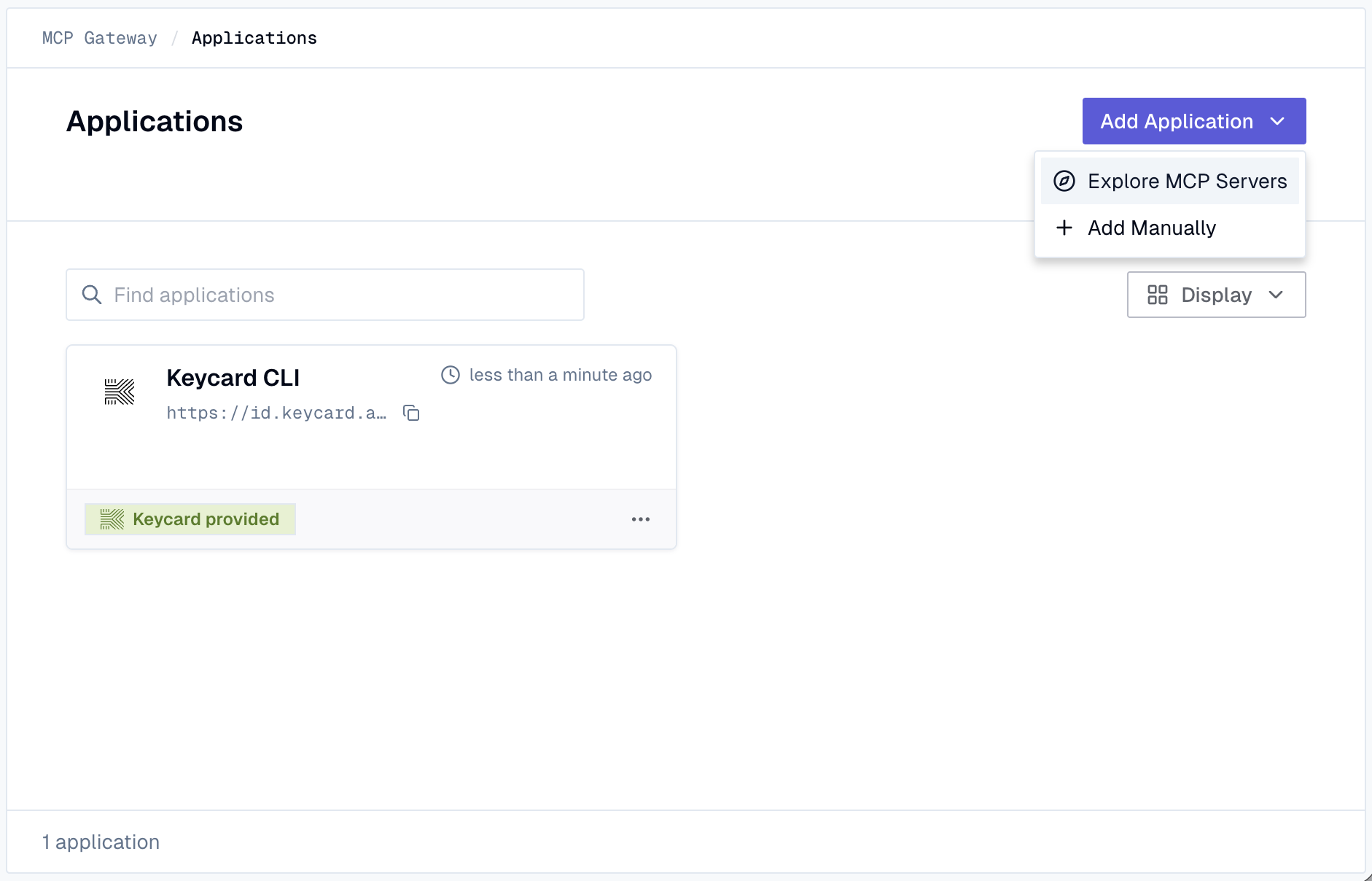
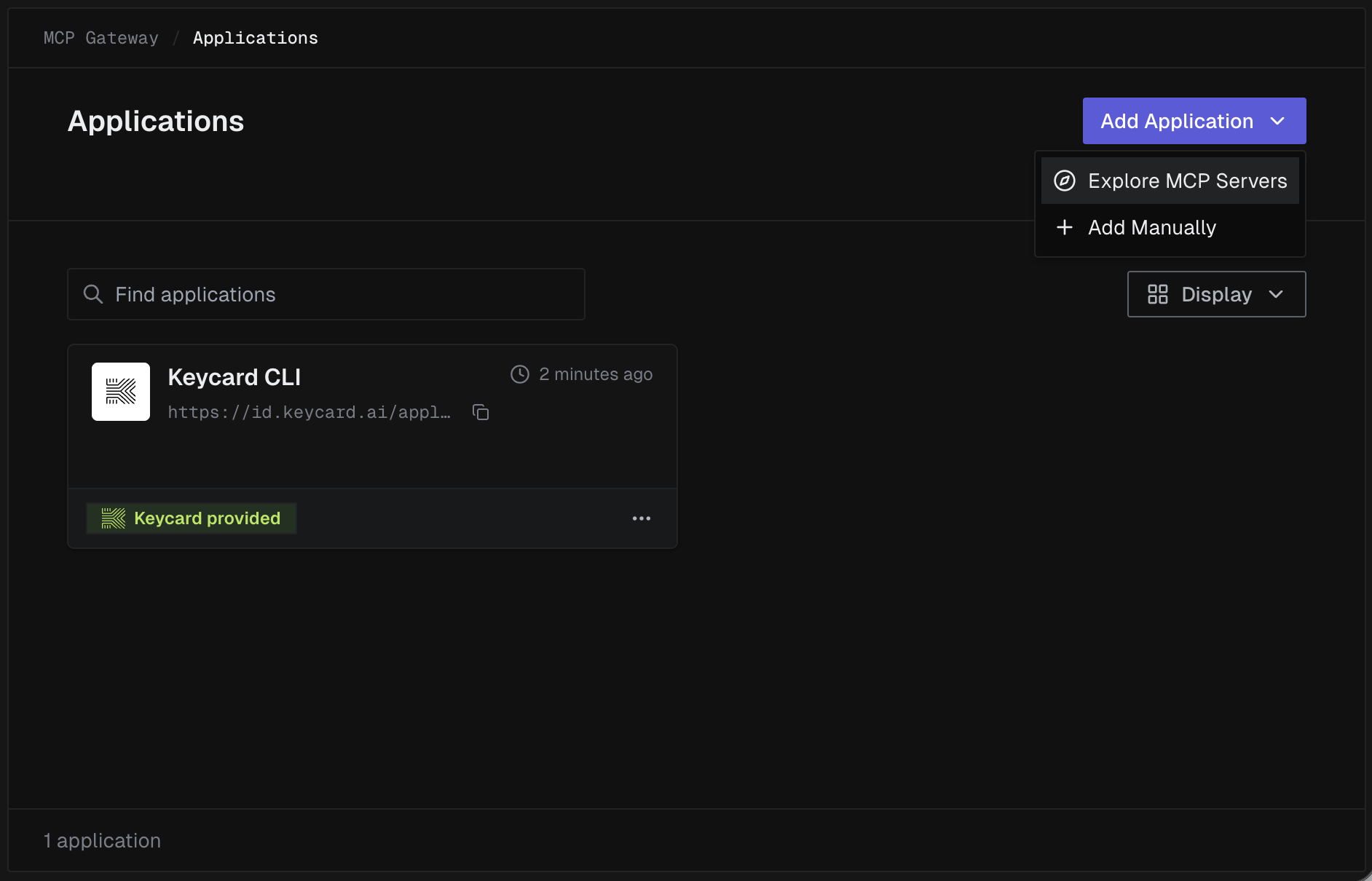
In Keycard Console, go to Applications → Add Application → Explore MCP Servers.
-
Find and install Linear
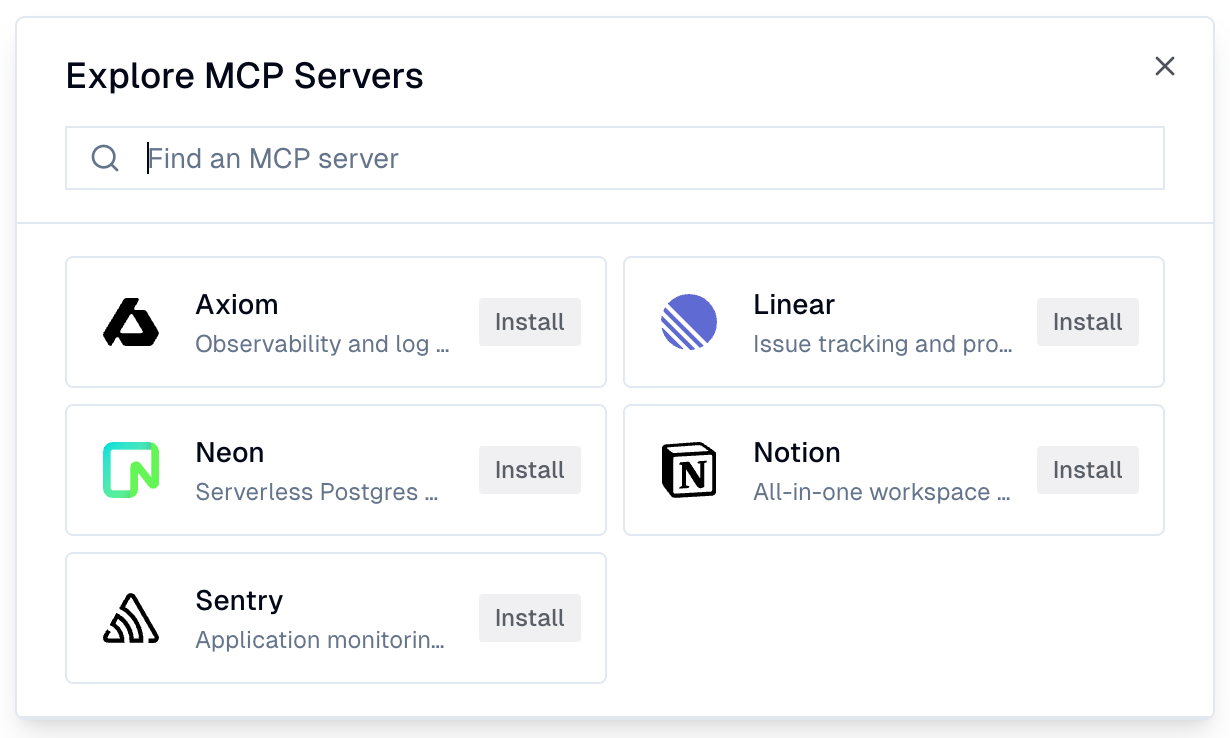
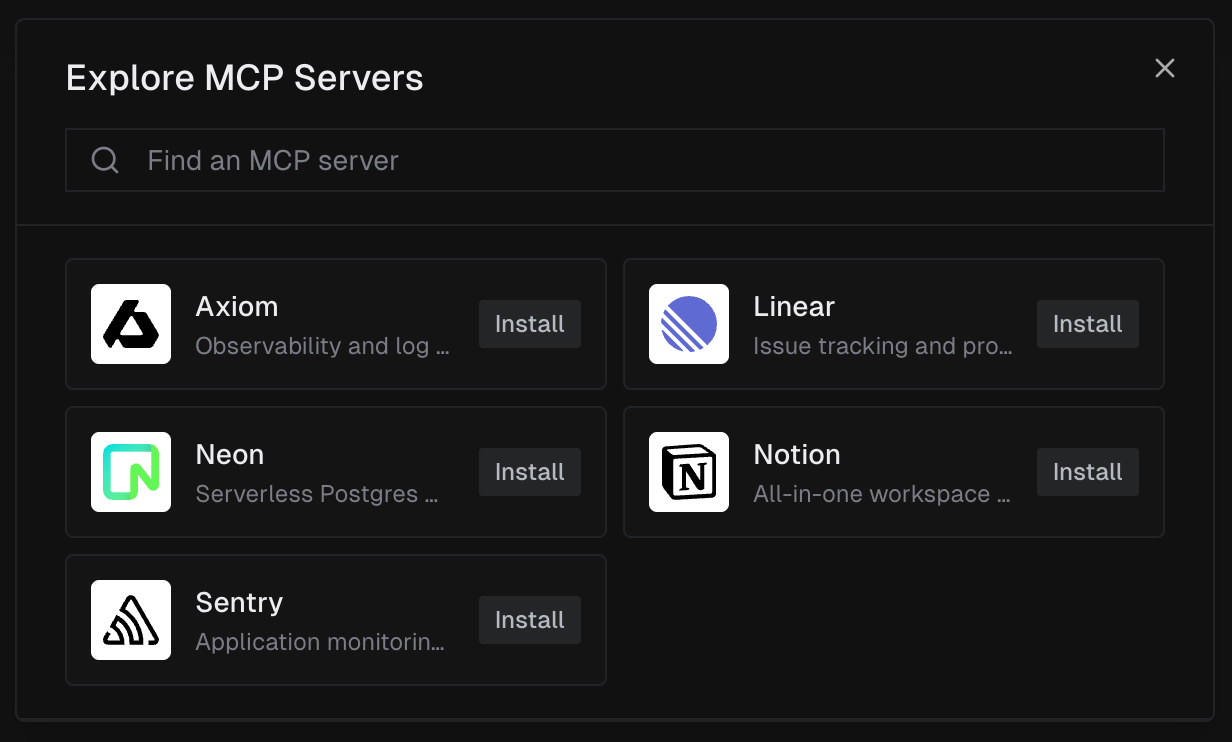
Locate Linear in the catalog and click Install.
-
Confirm Linear is protected
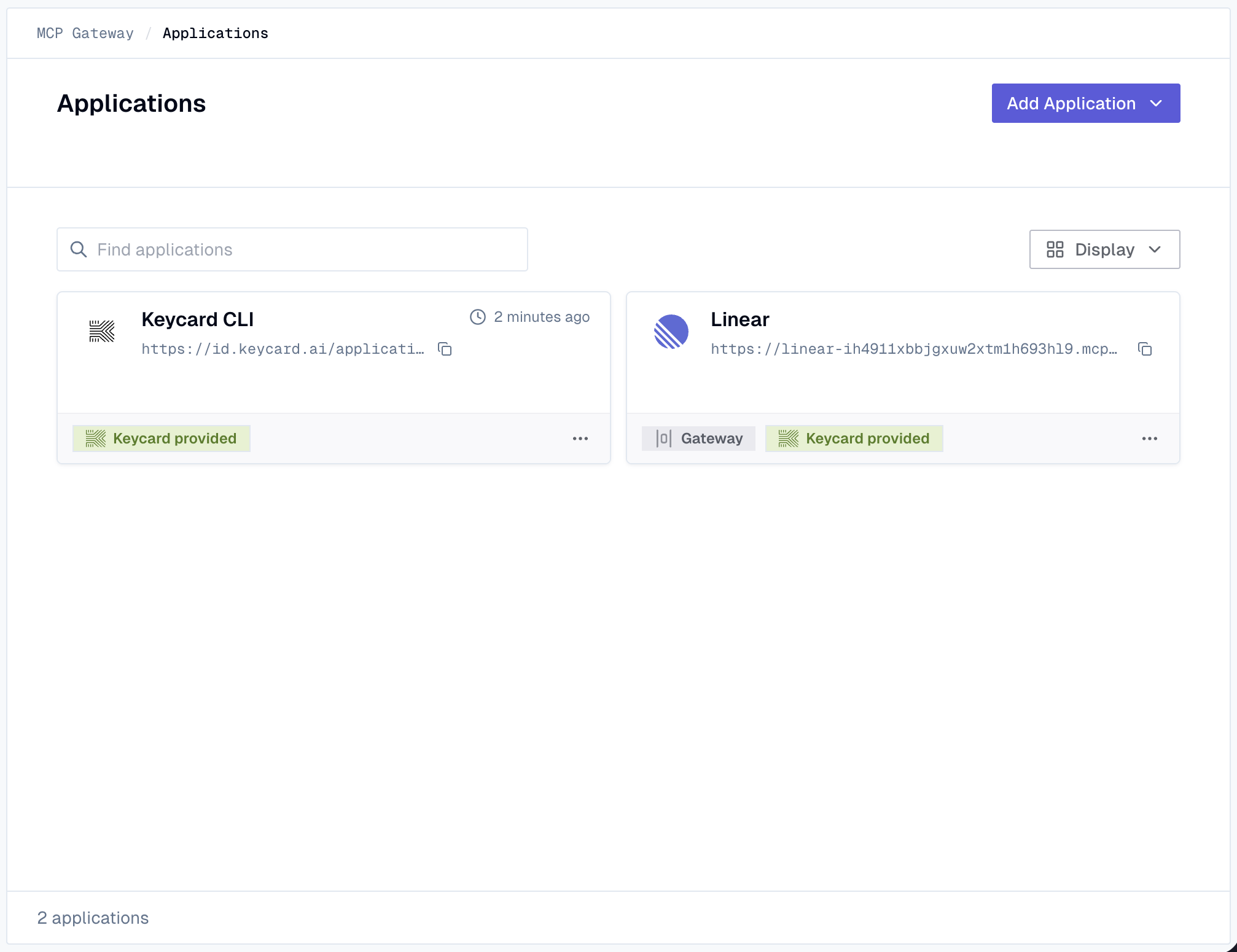
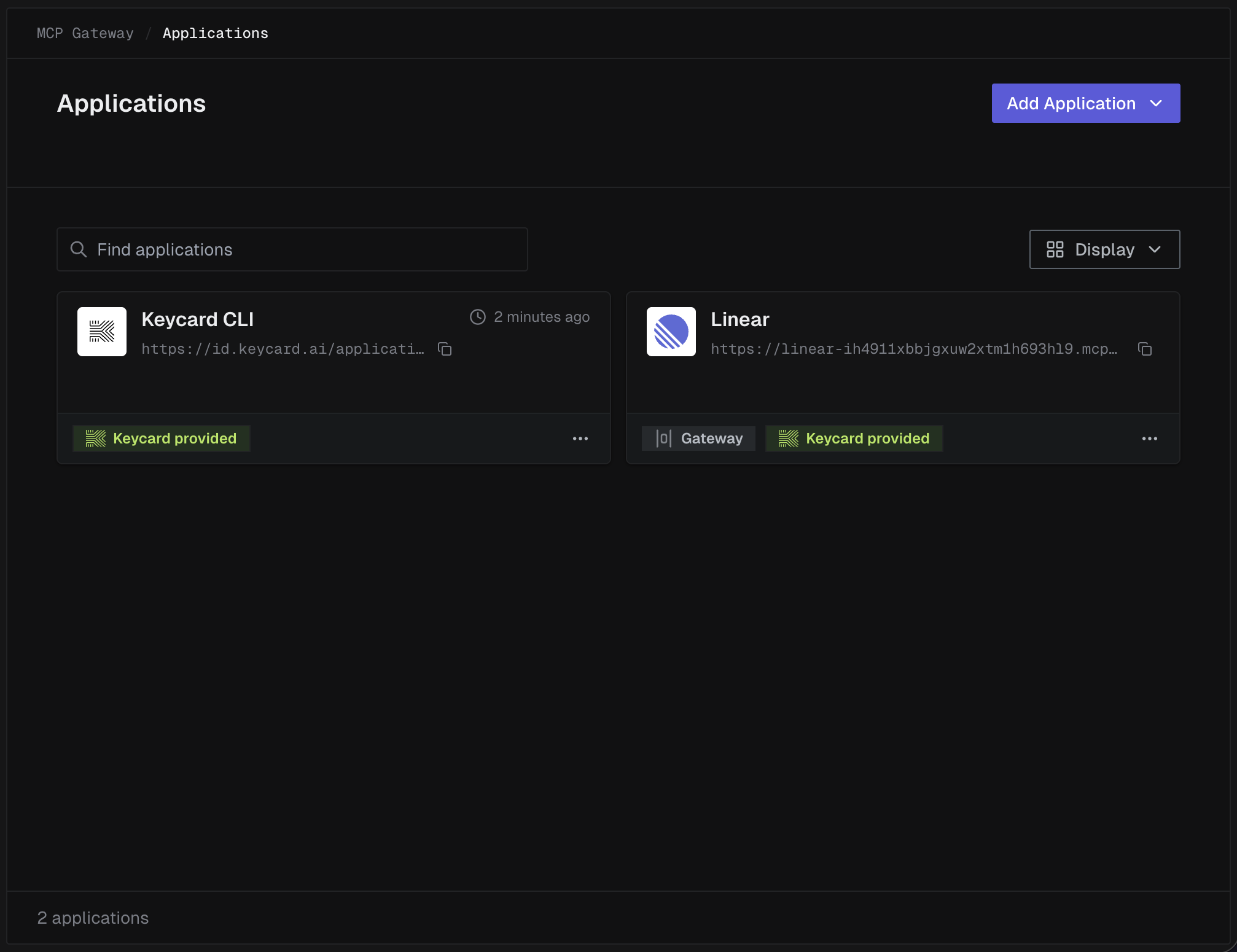
Linear now appears on the Applications page with a Gateway badge, indicating it is proxied through the Keycard MCP Gateway.
Connect to your development tool
Section titled “Connect to your development tool”Click the installed Linear application in the Applications list, then use the Install dropdown to choose your client.
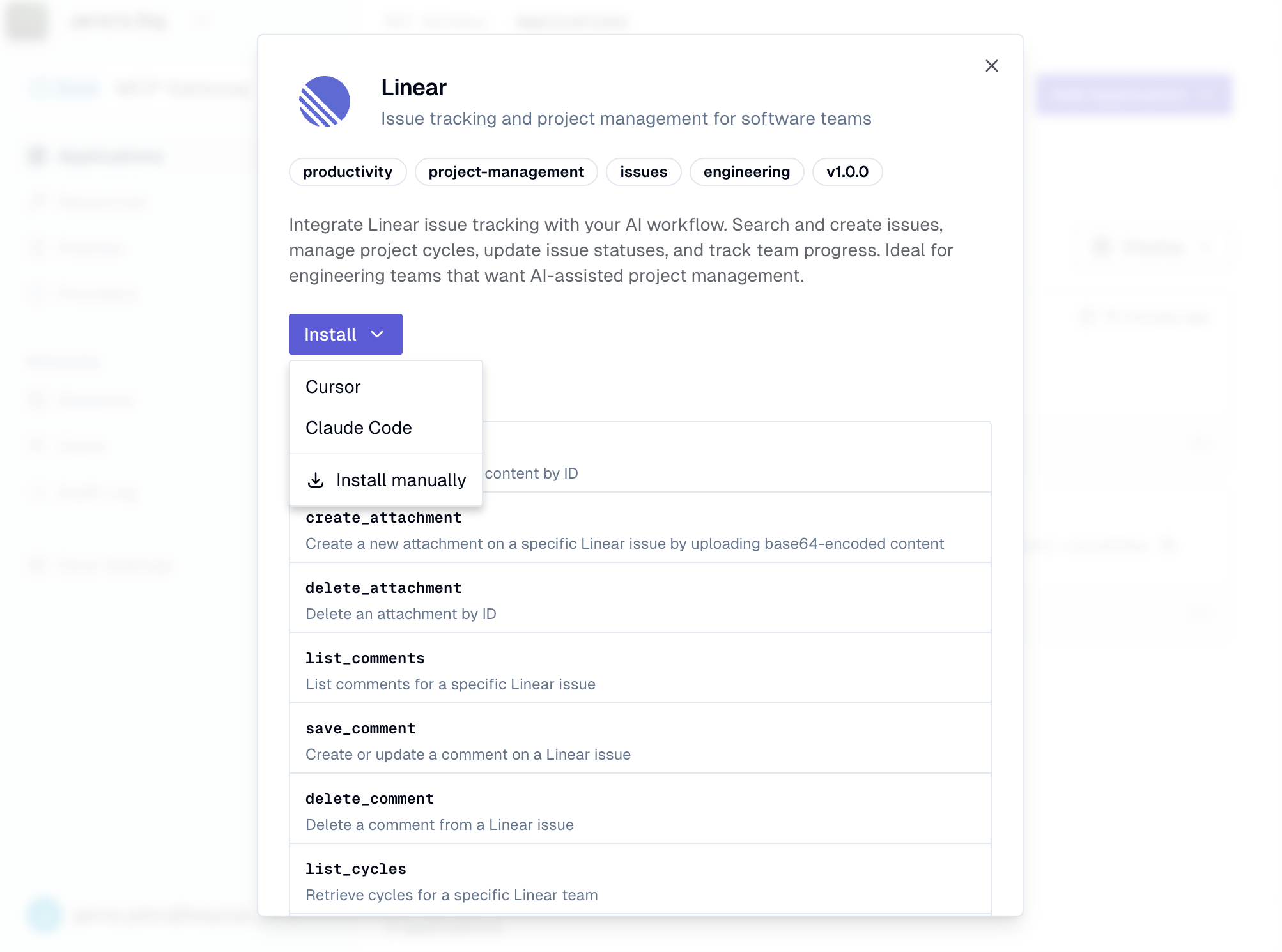
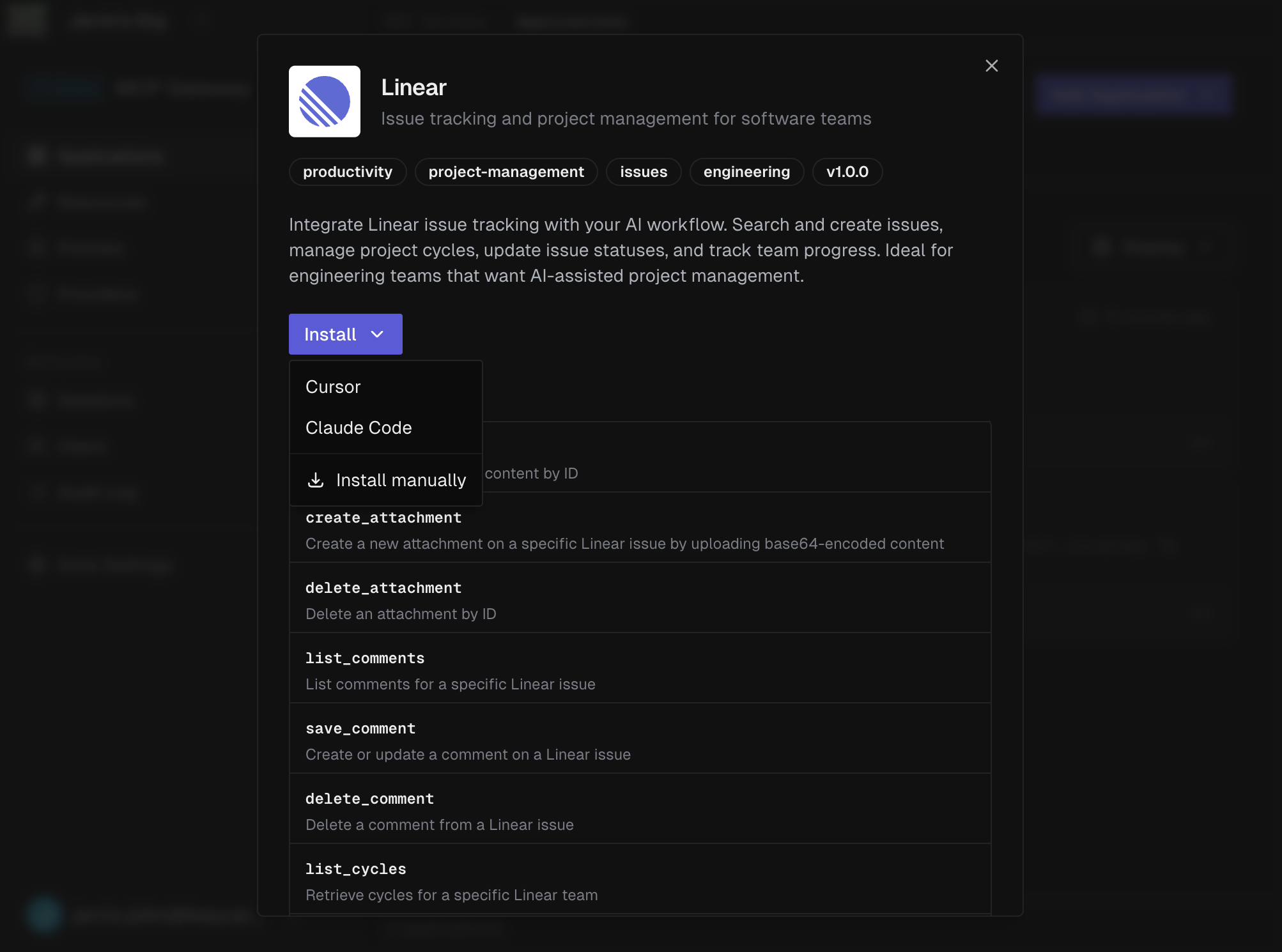
- Select Cursor from the Install dropdown
- Cursor will open with a prompt to add the MCP server — confirm
- The Keycard MCP Gateway URL is automatically configured
- Select Claude Code from the Install dropdown
- Copy the configuration snippet
- Add it to your Claude Code MCP settings
- Select Manual from the Install dropdown
- Copy the MCP server URL shown
- Add it to your MCP client’s configuration using the URL as the server endpoint
Authenticate
Section titled “Authenticate”-
Sign in with your identity provider
When your AI agent first calls a Linear tool, you will be prompted to sign in through your zone’s identity provider (e.g., Okta, Auth0).
-
Authorize access to Linear
After signing in, authorize the connection to Linear. This grants Keycard permission to manage Linear credentials on your behalf.
-
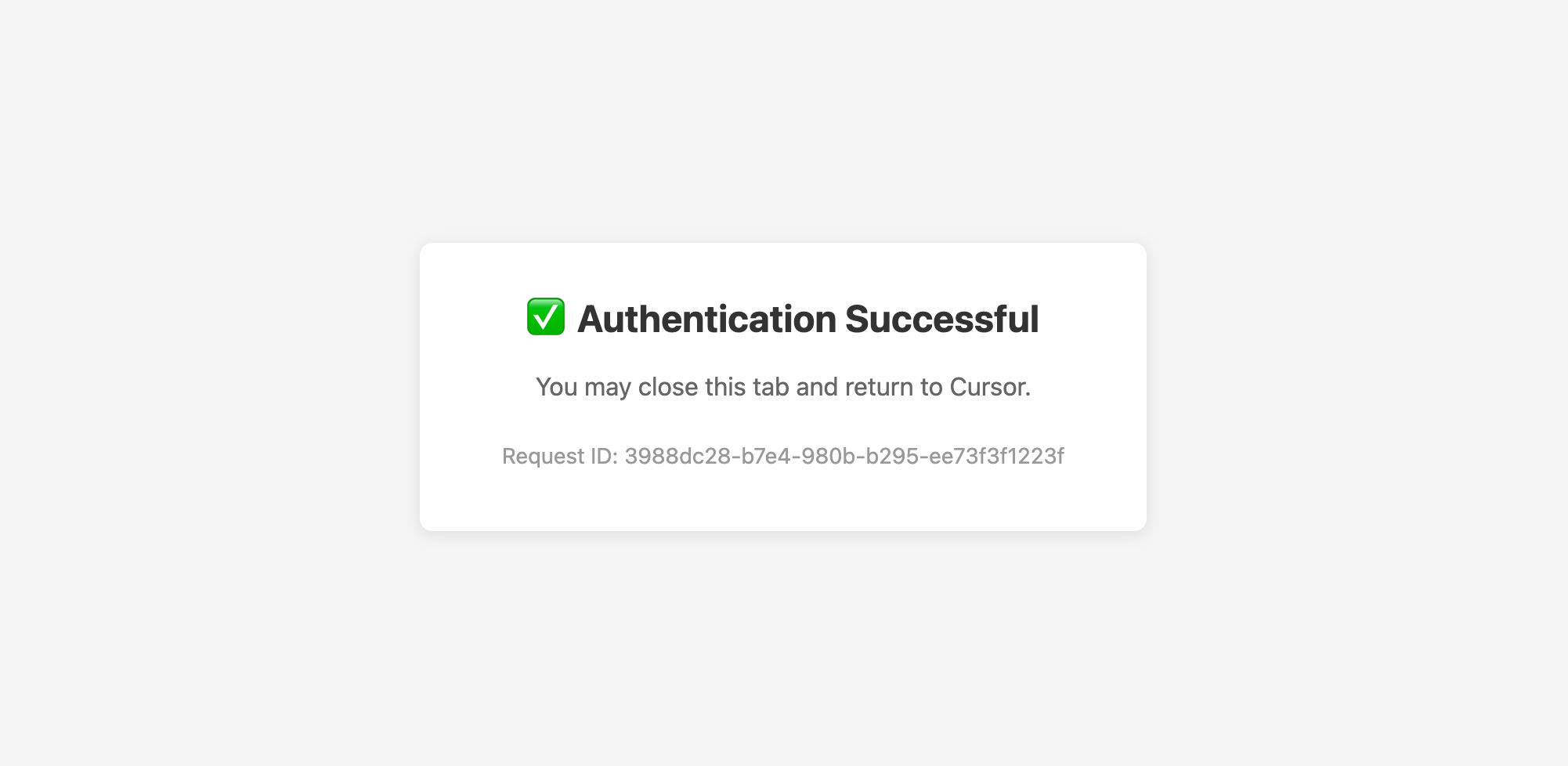
Confirmation
You will see an Authentication Successful message. Return to your development tool to complete the connection — your AI agent can now call Linear tools.
Use Linear tools
Section titled “Use Linear tools”Try these prompts in your connected dev tool:
- “List my assigned issues” — see what’s on your plate
- “Create an issue in the Backend team titled ‘Add rate limiting to API’” — create work items without leaving your editor
- “Show all in-progress issues for the current cycle” — track sprint progress
Each request flows through the Keycard MCP Gateway, so every MCP server access is tied to your identity and logged.
Verify in Audit Logs
Section titled “Verify in Audit Logs”In Keycard Console, navigate to Audit Logs to see the full flow:
| Event | Description |
|---|---|
users:authenticate | User signed in via your zone’s identity provider |
users:authorize | User authorized access to Linear through the gateway |
credentials:issue | Access token issued — shows the identity chain (user + Linear application) |
Each credentials:issue event includes an identity chain showing both the user identity (e.g., alice@acme.com) and the application identity (Linear), so you can trace exactly which user accessed which MCP server.
Next steps
Section titled “Next steps”- Access Policies — control who can access Linear and what actions are allowed
- MCP Catalog — browse all available MCP servers in the catalog