
Keycard uses role-based access control (RBAC) to manage who can administer Keycard. Roles apply at two levels:
- Organization roles control who can manage your organization.
- Custom zone roles control who can manage a specific custom zone.
Only members of your organization hold these roles. People who sign in to a custom zone to use its applications are not organization members and have no management access.
Organization Roles
Section titled “Organization Roles”Every member of your organization has one organization role.
| Admin | Full access to the organization and everything in it |
| Viewer | Read-only access to the organization |
Admins have full control of the organization:
- Manage organization settings
- Configure SSO
- Invite and remove members
- Change member roles
- Create, update, and delete zones
- Create and manage service accounts
- Configure applications, resources, and providers
- View audit logs
Viewer
Section titled “Viewer”Viewers have read-only access to the organization:
- View settings, members, and service accounts
- View applications, resources, and providers
- View sessions, users, and audit logs
- Cannot create, modify, or delete anything
Custom Zone Roles
Section titled “Custom Zone Roles”Custom zones have their own users and identity provider. To let an organization member manage a custom zone, an Admin assigns them a zone role.
| Manager | Full access to the custom zone and everything in it |
| Viewer | Read-only access to the custom zone |
Managing Members
Section titled “Managing Members”Inviting Members
Section titled “Inviting Members”-
Open the People page
Click People in the sidebar.
-
Create an invitation
Click Invite.
-
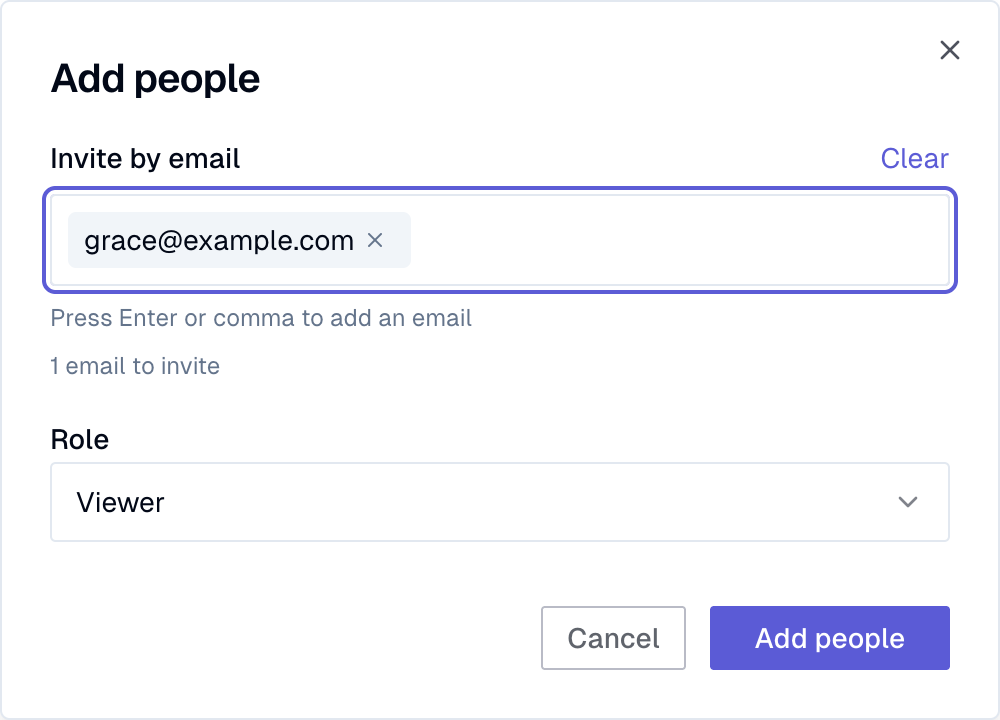
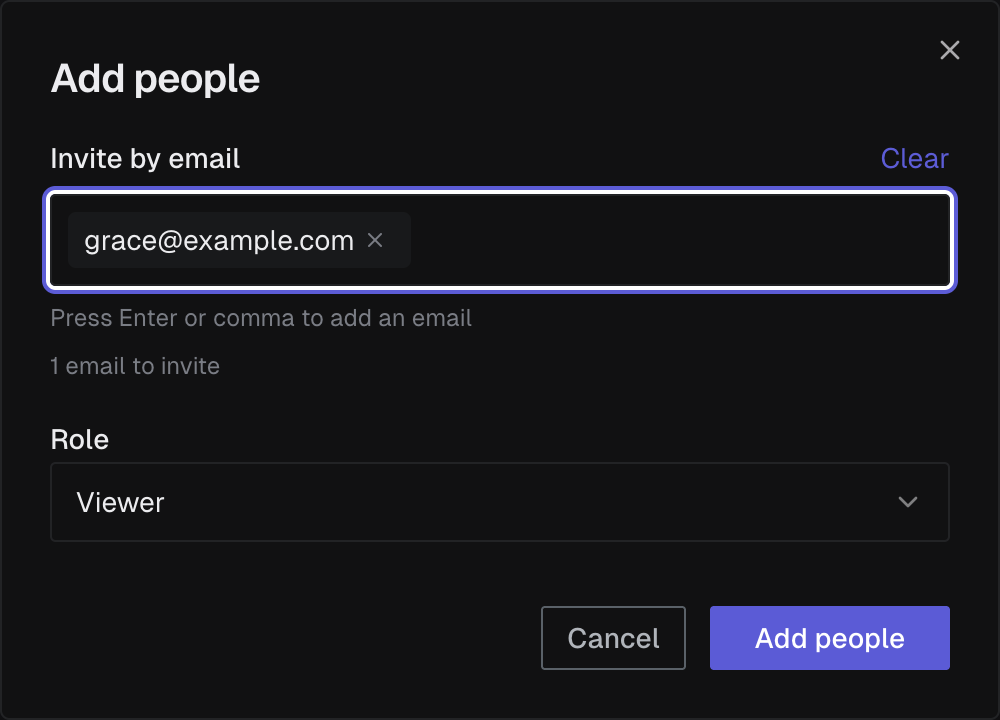
Enter email and role
Enter the email address(es) and choose a role (Viewer by default).
-
Send the invitation
Click Add people. They receive an email invitation.
Changing a Member’s Role
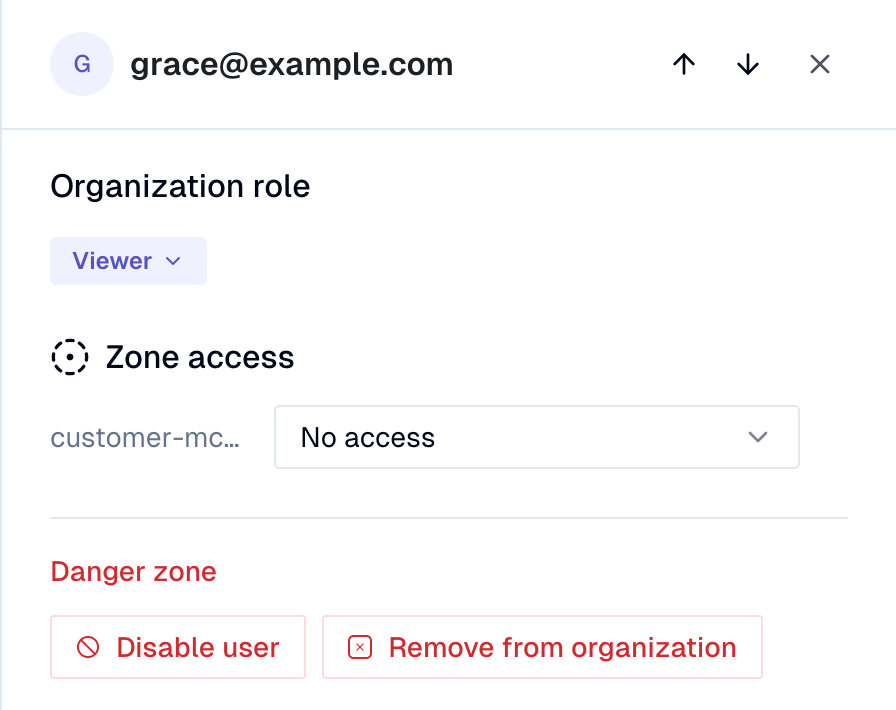
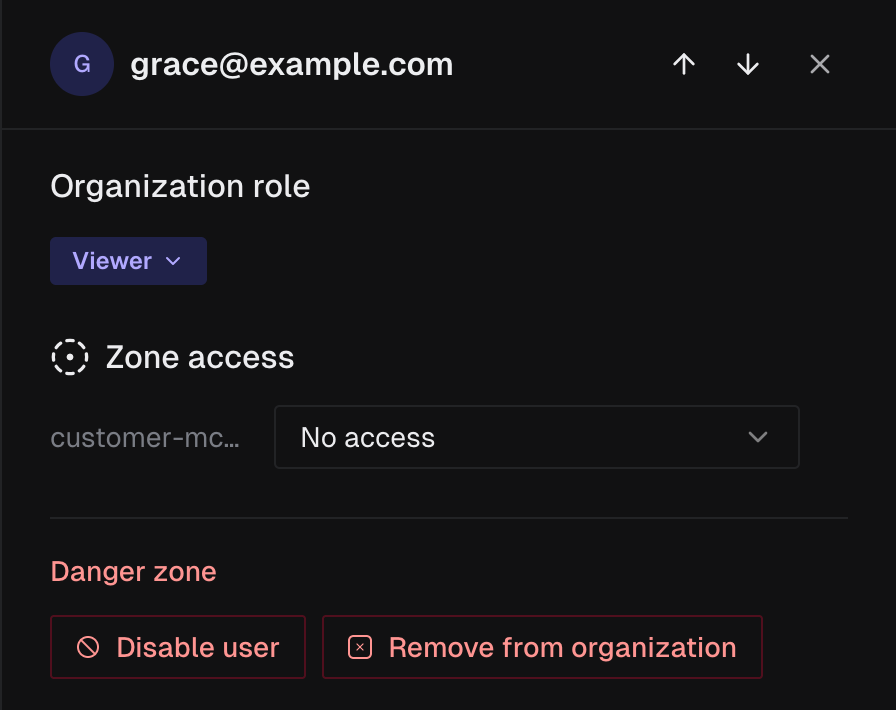
Section titled “Changing a Member’s Role”Open a member’s access drawer to change their organization role or their access to a specific Zone.
- Open the People page.
- Find the member and click the ⋯ button on their row to open their access drawer.
- Under Organization role, choose Admin or Viewer.
- Under Zone access, choose No access, Manager, or Viewer for each zone.
Assigning Roles to Groups
Section titled “Assigning Roles to Groups”Roles can be assigned to a Group as well as to an individual. Every member of the Group inherits the Role, and a person’s effective Roles are the union of the Roles assigned to them directly and the Roles assigned to every Group they belong to.
Use Groups when a Role should follow a team rather than a person: put someone in the right Groups and their access follows, instead of assigning each Role by hand. See Groups.
Best Practices
Section titled “Best Practices”Use least privilege
Give people the Viewer role unless they need to manage Keycard. Reserve Admin for the people who configure SSO, members, and policy.
Use service accounts for automation
For CI/CD pipelines and automated workflows, use service accounts instead of personal credentials.
Regularly audit access
Review your members and their roles periodically. Remove people who no longer need access.