
Tool Management
Review and select which tools a Unified Access Gateway serves before releasing them to your agents
MCP servers expose tools to their clients. Keycard records these tools and enables you to curate which of them each gateway serves — the same MCP server proxied by two different gateways can expose a broad tool set on one and a narrow one on the other. Curation decides which tools a gateway has; to limit who may call them, use Fine-Grained Authorization.
Prerequisites
Section titled “Prerequisites”- A Unified Access Gateway with upstream MCP servers attached (see Unified Access Gateway)
- Manager access to the Zone (see Roles & Permissions)
Reviewing available MCP tools
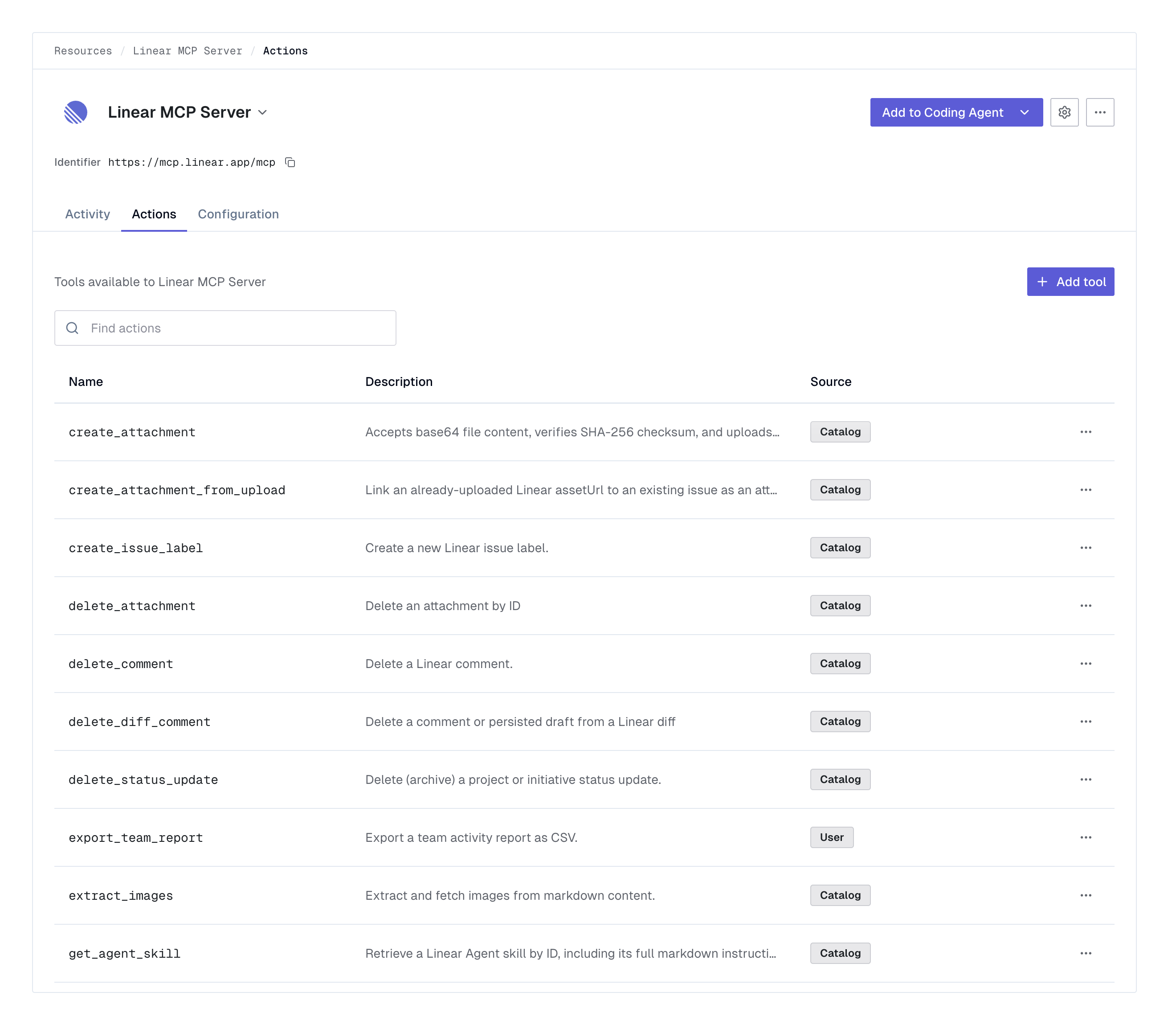
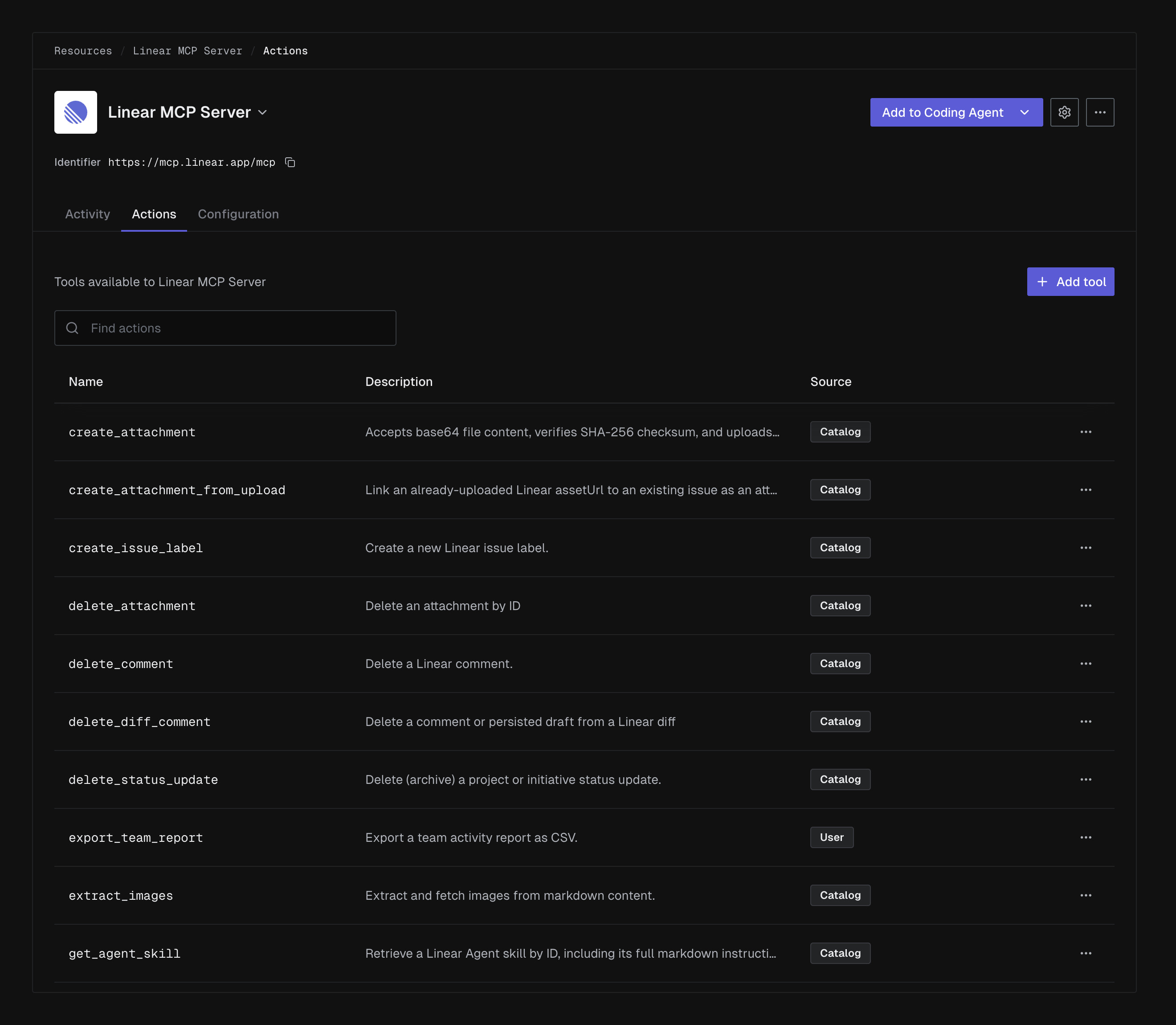
Section titled “Reviewing available MCP tools”Open Resources, select an MCP server, and open the Actions tab. The table lists every tool Keycard has recorded for that server, with a Source column saying where each one came from:
| Source | Meaning |
|---|---|
| Catalog | Seeded from the package description when the server was installed from the Catalog |
| User | Added by hand on this tab |
Adding new or unlisted MCP tools
Section titled “Adding new or unlisted MCP tools”Servers you build in-house have no Catalog package to seed from, so their tool list starts empty. Click Add tool and enter the tool’s Name, which is the full policy action name rather than the bare MCP tool name: prepend mcp::tools/call:: to the name the server publishes.
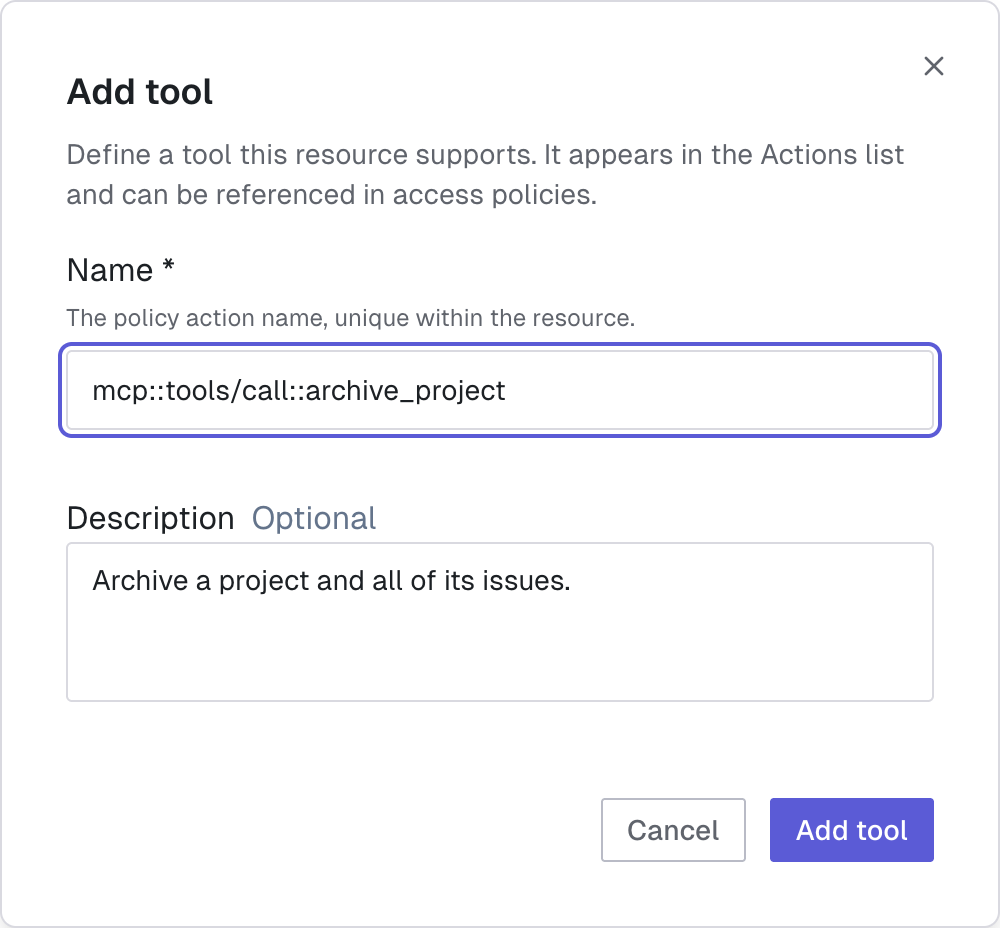
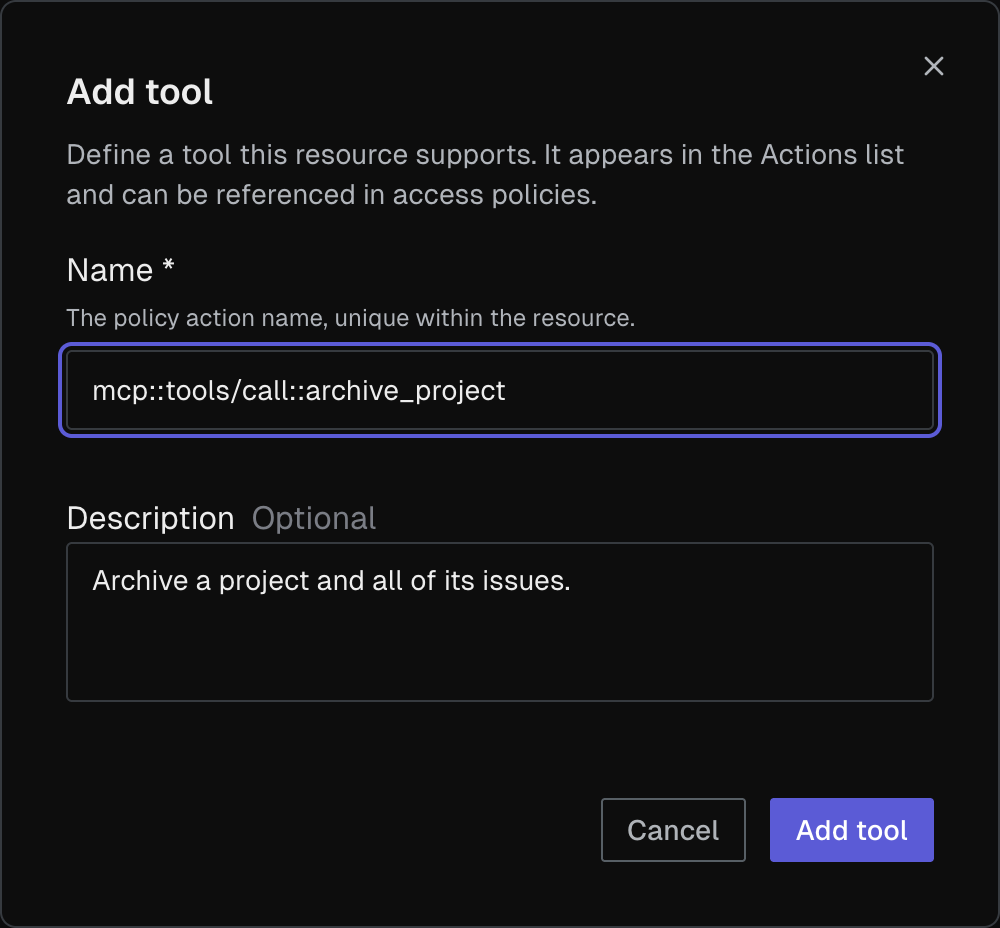
The name must be unique within the Resource. Each row’s menu also offers Edit tool and Remove tool, so you can correct a hand-built list.
Because the name you enter is the exact string your Policies match on, you can write Policy against a tool whether or not any gateway serves it.
Choosing the tools a gateway serves
Section titled “Choosing the tools a gateway serves”The Unified Access Gateway can operate in two modes.
The All actions mode acts as an unfiltered proxy: the gateway continues to serve all available actions from the upstreams. Use this mode if you want the latest tools to become available as soon as the upstreams release them.
The Selected actions mode acts as a configuration gate: new tools must be explicitly enabled when the upstream releases them. Use this mode when you want to review new tools before making them visible to consumers.
-
Open the gateway’s actions panel
In Keycard Console, open Applications, select the gateway, then open the MCP Servers tab. Click an attached server to open its actions panel.
-
Read the current mode
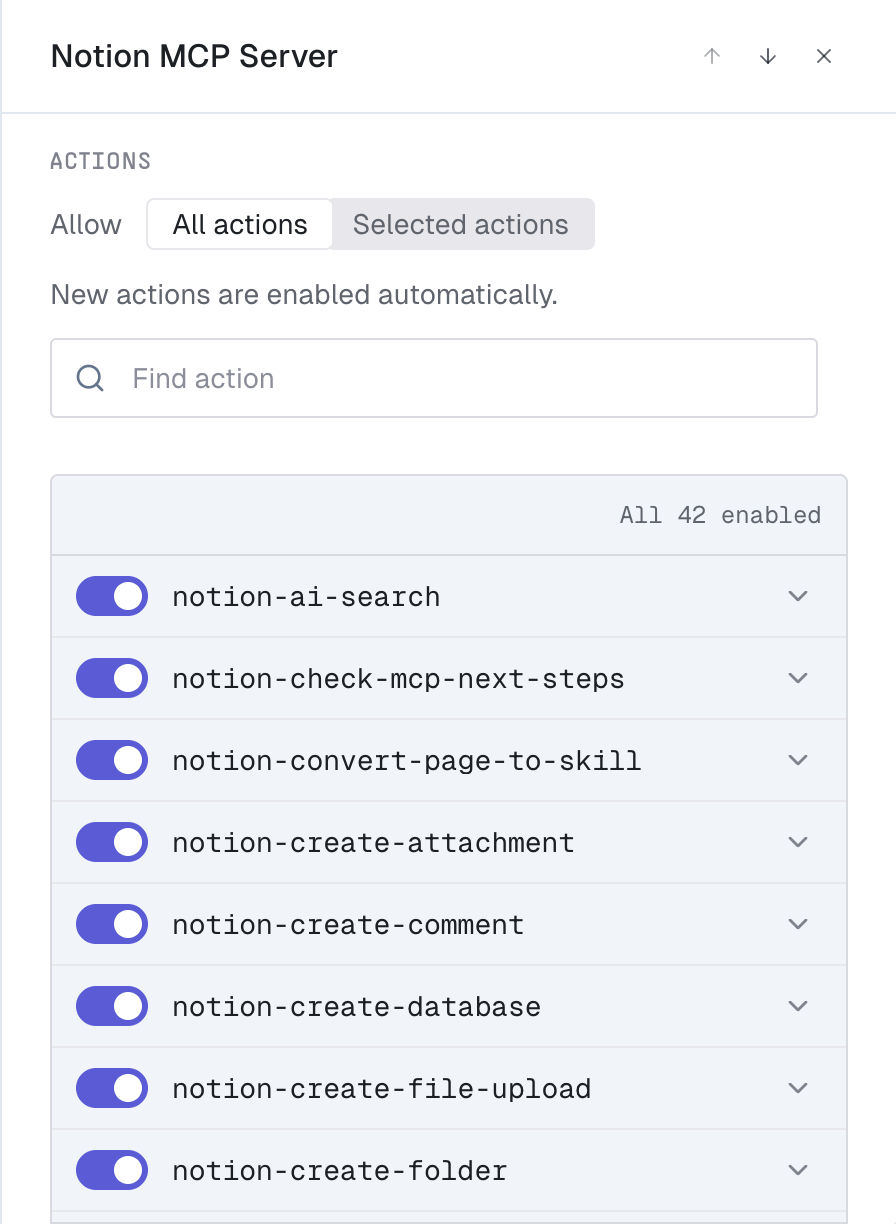
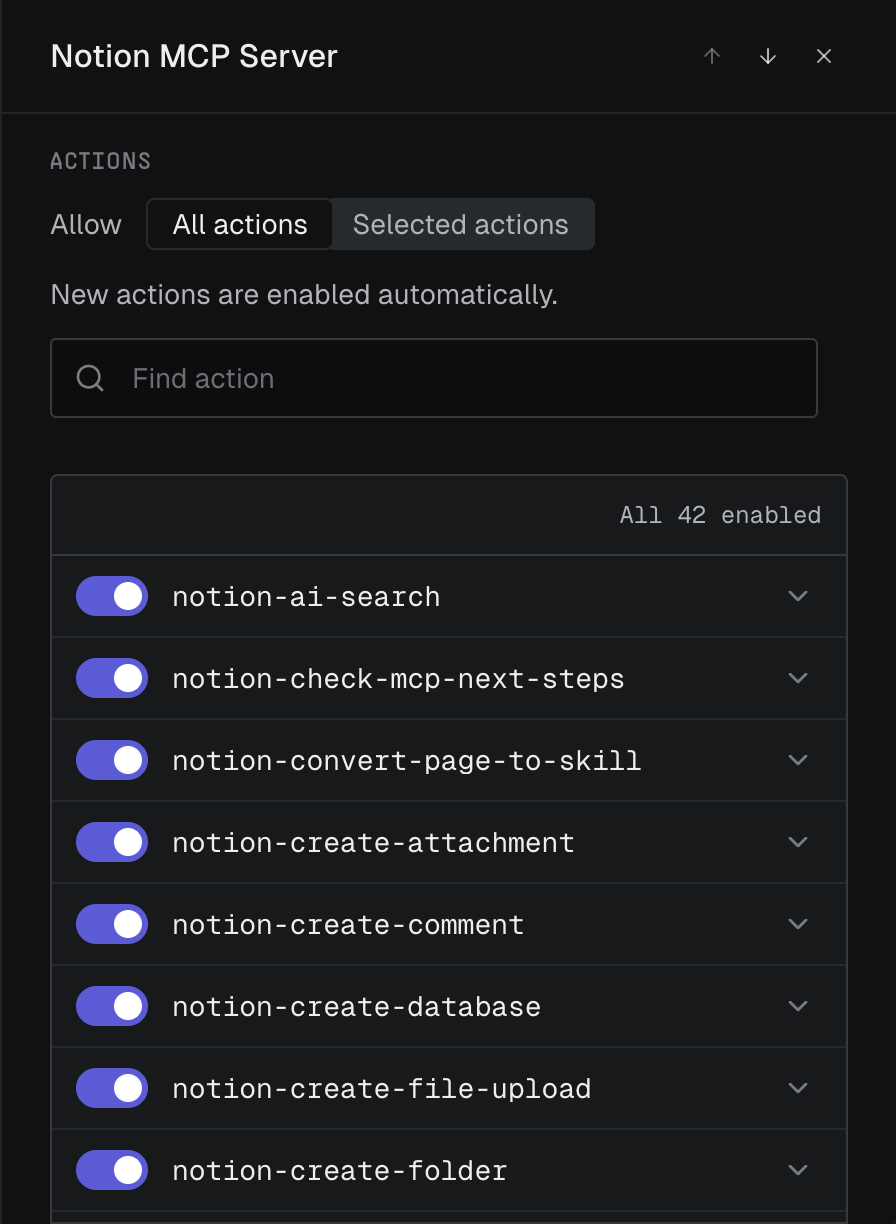
The Allow field shows the server’s current mode on this gateway.
Every server starts in All actions when you attach it. The panel says New actions are enabled automatically, and the count reads All, followed by the number of tools.
-
Turn off the tools this gateway shouldn’t serve
Find a tool with the search box and turn its switch off.
Turning off the first tool moves the server to Selected actions, where the panel says Until you enable them, new actions stay disabled and the count becomes a ratio, such as 64 of 66 enabled.
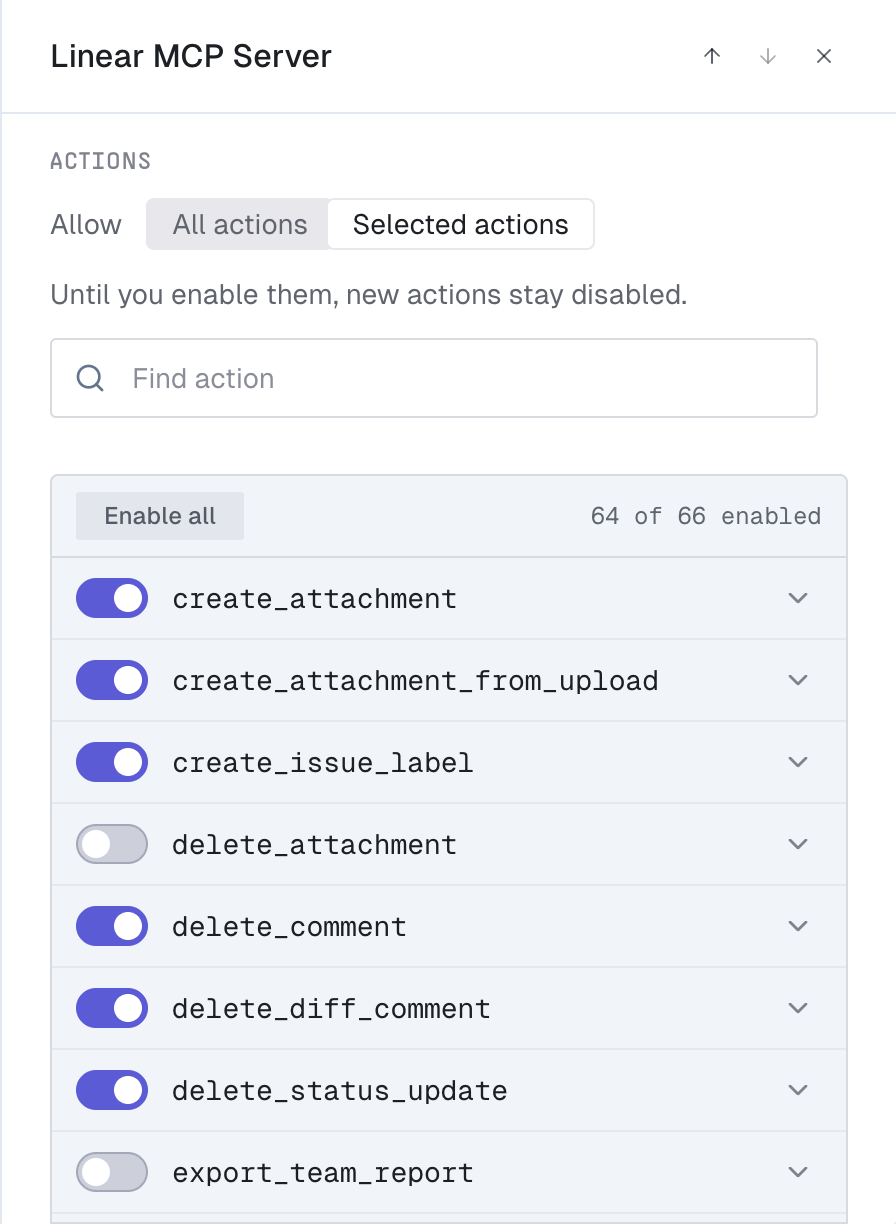
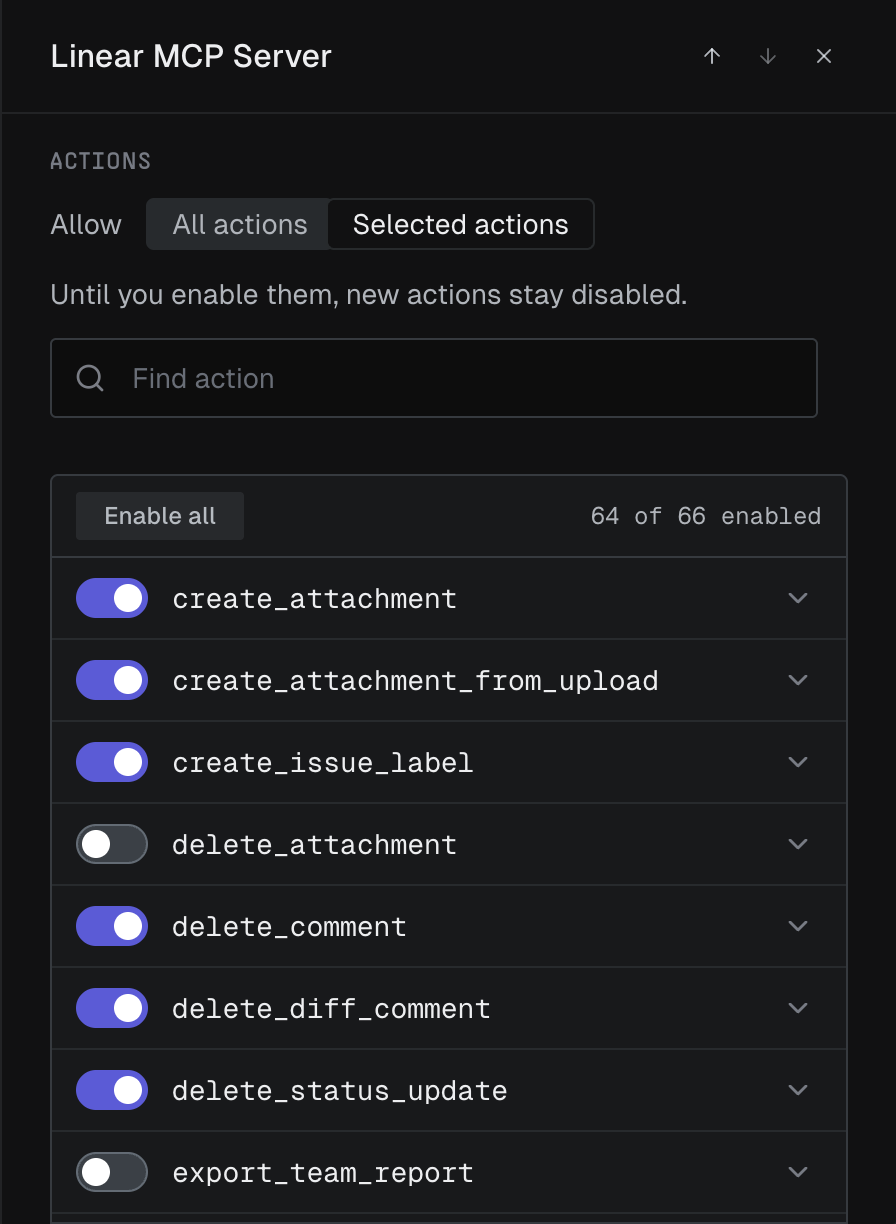
Expand a row to see the tool’s description and its full policy action name, with a button to copy the name for a Cedar Policy.
-
Cut the list down to a few tools
Where a gateway should serve only a handful of tools, click Disable all, then turn on the few you want. The button reads Enable all whenever anything is off.
A server in Selected actions with nothing enabled serves no tools. Troubleshooting covers what a client sees in that case.
-
Return to serving everything
Click All actions to stop curating. The gateway goes back to serving whatever the upstream returns, including tools added later, and Keycard discards your per-tool selections for that server.
Verify
Section titled “Verify”Connect to the gateway as one of its users and list its tools: a tool you turned off is absent. Call it by name anyway and the client reports unknown tool: <upstream>__<tool-name>, with no matching request reaching the upstream. Changes take effect on the next request through the gateway — there is nothing to deploy and no need for users to sign in again.
Then check Console → Audit Log for the applications:disable_action event recording who turned it off and when. See Activity events for the other events curation emits.
Troubleshooting
Section titled “Troubleshooting”If a tool is missing from a user’s tool list, check whether the server is in Selected actions on that gateway and whether the tool is turned on — a tool the upstream released after the server moved to Selected actions arrives switched off. The client error doesn’t distinguish a disabled tool from one that never existed, but activity events record the real reason: tool <tool-name> is outside the curated surface of <upstream-mcp-url>. When curation isn’t the cause, the user may not be permitted to list that upstream; see Fine-Grained Authorization.
When a server is in Selected actions with nothing enabled, the gateway refuses every call to it, and the error names Policy rather than curation: a call returns access denied by policy for <upstream-mcp-url>, and if that server is the gateway’s only upstream, tools/list returns no unified upstreams are accessible with the presented grant. Check that the panel doesn’t read 0 of N enabled before you start debugging Policy. Click Enable all to restore the full set, or All actions to stop curating.
A client can still list a tool you turned off, because the gateway doesn’t push a tool-list change notification and the client shows the list it last fetched. Calling the tool fails regardless; have the user reconnect to refresh the list.
Next steps
Section titled “Next steps”- Gate the remaining tools per User or Group with Fine-Grained Authorization.
- Review who called what in the audit log.