
Revoke access
Revoke a grant from the Console or the management API, or cut a person off entirely.
A grant records that a User authorized access, on their behalf, to a Resource behind an external Provider, such as GitHub. Keycard stores it when the User approves that access, with the Resource, the Provider, and the approved scopes. From then on, Keycard issues credentials for that access without prompting the User again.
Revoking a grant withdraws that authorization. You’d do this when:
- Offboarding a person or decommissioning an Application.
- A compromised or misbehaving agent needs to be cut off. An agent that runs as its own Application, with no User behind it, can be cut off by itself: delete its credential (a Workload Identity credential, a client secret or a public key), and Keycard refuses the agent’s next token request. For an agent acting for a User, there’s no control for that one agent yet. Revoking the grant it uses cuts off every tool that uses that grant for the User, and disabling the User cuts off everything.
- An Application ended up over-scoped and you want to force it back through consent.
- You’re wrapping up a proof of concept and want to clean up the access it accumulated.
Who can revoke grants
Section titled “Who can revoke grants”Grants live in your organization, and revoking one is a management operation, so it requires a management role:
- Admins (organization-wide) and Managers of a custom Zone can view and revoke grants for people in that scope.
Viewers are read-only: they can see grants but not revoke them.
Before you begin
Section titled “Before you begin”- Sign in to the Keycard Console with an Admin or Manager role.
- Know which person holds the grant. Grants are managed per User from the People page.
- People and grants live in your organization by default. If the access was granted in a custom Zone, switch to that Zone from the Zones page first.
- For the management API, have your organization’s
<zone-id>(its org Zone) and a service-account token.
Revoke a grant
Section titled “Revoke a grant”-
Open the person’s profile
In the left nav, go to People and click the person whose access you want to withdraw. Their profile shows their identifiers and last activity, and opens on the Activity tab.
-
Open the Grants tab
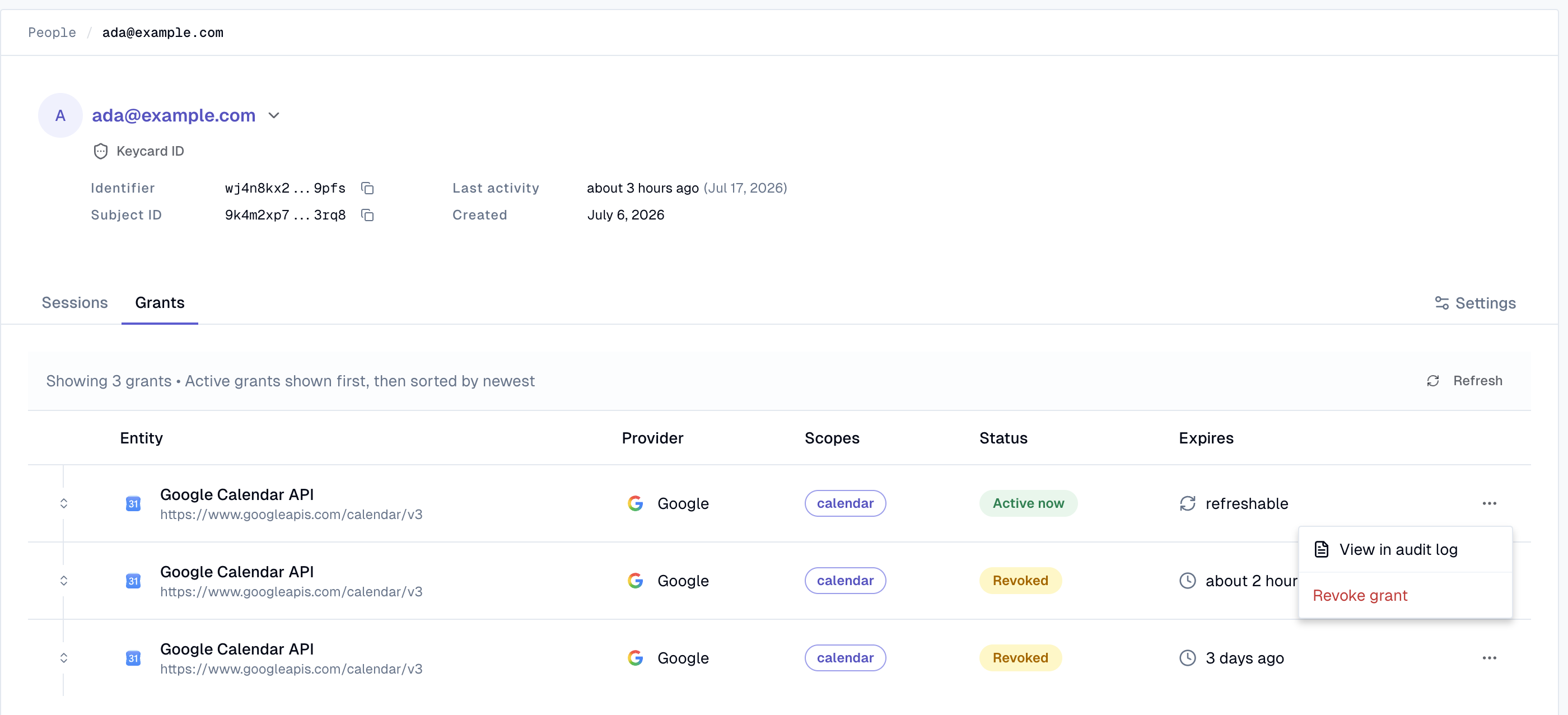
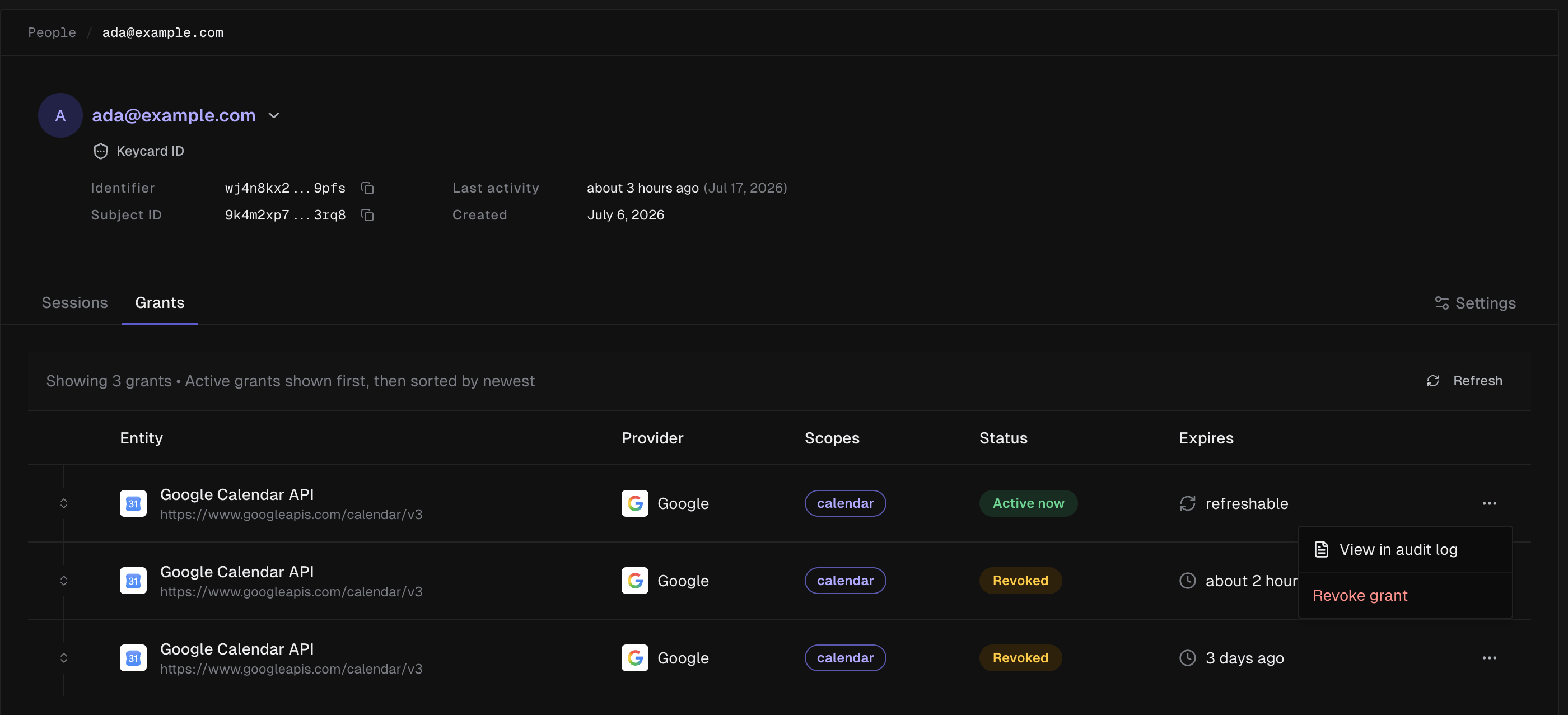
Select Grants. Each row is one grant, showing the Entity (the Resource, such as
Google Calendar API), its Provider, the approved Scopes, a Status (Active noworRevoked), and when it Expires (for example,refreshable). Active grants are listed first. After the Quickstart, there’s one row, GitHub API.Only Resources behind an external Provider, such as GitHub, have a grant row; others, like your own server, don’t. To cut off access to one of those, deny it in a policy or disable the person.
-
Revoke the grant
On the grant’s row, open the actions menu (⋯) and choose Revoke grant, then confirm with Revoke.
-
Confirm the status flipped
The grant’s Status changes to Revoked. Use Refresh if the list doesn’t update immediately. For a GitHub grant, Expires then shows when the last GitHub token Keycard handed out stops working at GitHub, such as
in about 8 hours. Keycard won’t use that token again, but it doesn’t revoke it at GitHub. The Quickstart’s server doesn’t keep the token, so its next call fails anyway. See Verify the revocation to confirm the effect on live traffic.
All management API requests use a Bearer token obtained from your service account’s client credentials. In the paths below, <zone-id> is your organization’s Zone (its org Zone), or a custom Zone’s ID if the grant lives there.
-
Authenticate
Exchange the service account’s client ID and client secret (exported as
KEYCARD_CLIENT_IDandKEYCARD_CLIENT_SECRET) for a token:ACCESS_TOKEN=$(curl -s -X POST https://api.keycard.ai/service-account-token \-d "grant_type=client_credentials" \-d "client_id=$KEYCARD_CLIENT_ID" \-d "client_secret=$KEYCARD_CLIENT_SECRET" \| jq -r '.access_token') -
List the grants in the Zone
Find the grant you want to revoke. Filter by the person’s user ID, and optionally
status=active.curl "https://api.keycard.ai/zones/<zone-id>/delegated-grants?user_id=<user-id>&status=active" \-H "Authorization: Bearer $ACCESS_TOKEN"Each entry in
itemshas anid— that’s the grant you’ll revoke. -
Revoke the grant
Send
DELETEto the grant. This is the request the Console’s Revoke grant sends: it returns204 No Content, and the grant stays listed with Status: Revoked.curl -X DELETE https://api.keycard.ai/zones/<zone-id>/delegated-grants/<grant-id> \-H "Authorization: Bearer $ACCESS_TOKEN"PATCHon the same path with{"status": "revoked"}revokes the grant the same way and returns the updated grant.
All management API requests use a Bearer token obtained from your service account’s client credentials. Here zone_id is your organization’s Zone (its org Zone), or a custom Zone’s ID if the grant lives there.
-
Authenticate
Exchange the service account’s client ID and client secret for a token:
import requeststoken_response = requests.post("https://api.keycard.ai/service-account-token",data={"grant_type": "client_credentials","client_id": KEYCARD_CLIENT_ID,"client_secret": KEYCARD_CLIENT_SECRET,},).json()base = "https://api.keycard.ai"headers = {"Authorization": f"Bearer {token_response['access_token']}"} -
List the grants in the Zone
grants = requests.get(f"{base}/zones/{zone_id}/delegated-grants",headers=headers,params={"user_id": user_id, "status": "active"},).json()for grant in grants["items"]:print(grant["id"]) -
Revoke the grant
Send
DELETEto the grant — the same request as the Console’s Revoke grant:requests.delete(f"{base}/zones/{zone_id}/delegated-grants/{grant_id}",headers=headers,)It returns
204, and the grant stays listed with statusrevoked.requests.patch(...)on the same path withjson={"status": "revoked"}revokes it the same way and returns the updated grant.
What happens after you revoke
Section titled “What happens after you revoke”Revoking a grant stops Keycard from issuing new access for that User and Resource. It does not reach out and invalidate credentials that are already in the wild.
New credential requests stop. The next time the Application asks Keycard for a credential for that access — a fresh token exchange or a refresh — Keycard has no grant to satisfy it and the request fails with insufficient_authorization (an OAuth2Error) and the message User authorization is required for resource <resource-url>. The User has to authorize the access again before anything is issued, so the Application should treat this as a re-authentication prompt.
Already-issued credentials live until they expire. Keycard issues short-lived credentials, but there is no per-token kill-switch today. A token the agent already holds keeps working against the Resource until it expires on its own. So when access stops depends on the Application: one that asks Keycard for a credential on every call, like the Quickstart’s server, fails on its next call; one that keeps a token works until that token expires.
Refresh stops. A grant that shows refreshable in the Console can mint new credentials without re-prompting the User. Revoking the grant ends that — refresh attempts fail, so the Application can’t quietly extend its access past the current token.
Brokered credentials are a special case. For brokered access to an external Provider (Google, GitHub, and so on), revoking the Keycard grant stops Keycard from brokering new credentials — but it does not sign the User out at the Provider or revoke a token the Provider already issued. To fully cut off external access, also revoke Keycard’s access from the Provider’s own connected-apps settings.
Cut a person off entirely
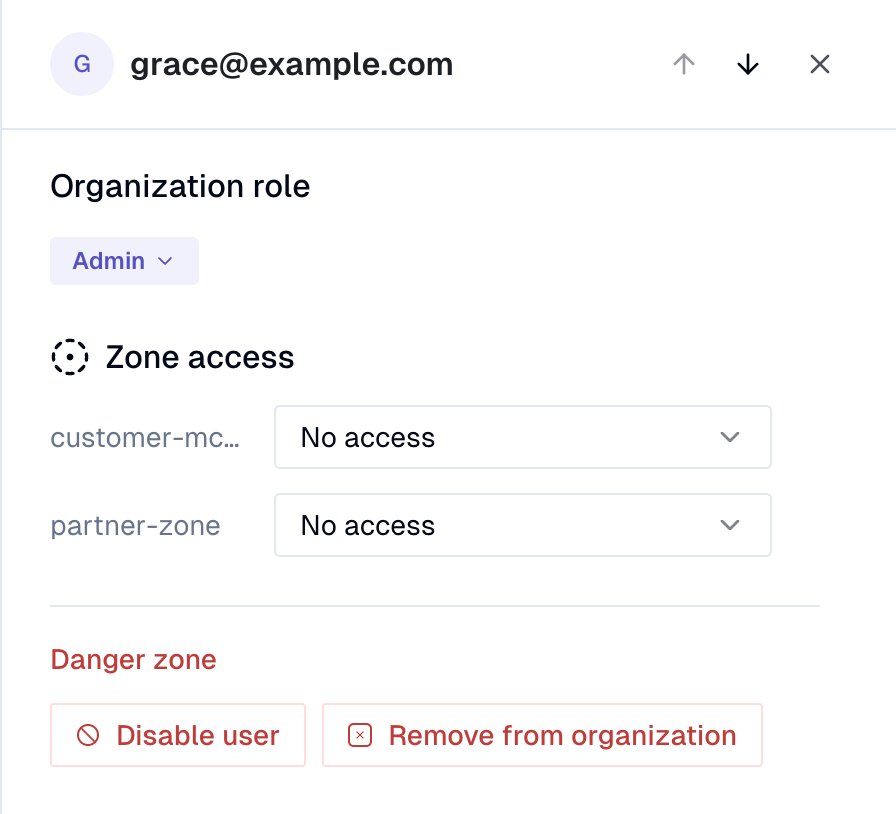
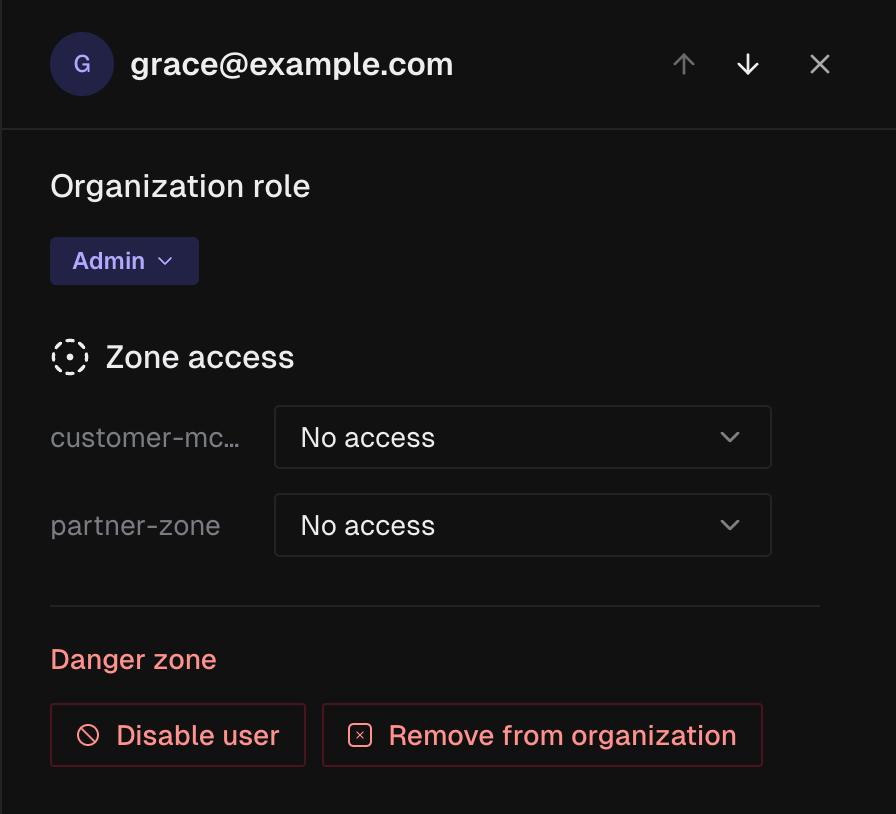
Section titled “Cut a person off entirely”When you’re offboarding someone or responding to a compromise, revoking grants one at a time is slower than you want. From the People page, open the person’s access drawer (the ⋯ on their row) and use the Danger zone:
- Disable user blocks the person from signing in and stops agents acting for them from refreshing or obtaining new credentials. Their account and configuration stay intact, and you can re-enable them.
- Remove from organization removes the person entirely.
You can’t disable or remove yourself.
Disabling or removing a person stops new credential issuance the same way revoking a grant does; credentials their Applications already hold keep working until they expire.
Verify the revocation
Section titled “Verify the revocation”Steps 3 and 4 take the organization Admin Role: a Resource’s Activity tab, View in audit log and the Audit Log need the events:list permission, which the Manager and Viewer Roles on a custom Zone don’t have. A Zone Manager can check steps 1 and 2.
-
Check the grant status. On the person’s Grants tab, the revoked grant now shows Status: Revoked.
-
Retry from the Application. Trigger the Application again. If it asks Keycard for a credential on every call, as the Quickstart’s server does, try it right away; if it keeps a token, wait until that token expires. Its next token request to Keycard should fail with
insufficient_authorization. -
Check the Resource’s Activity. Open Resources, select the Resource (such as GitHub API) and open its Activity tab. Each call shows as two rows, Allow and Credential Issued. After your revoke, the next call shows Allow followed by a failed Credential Issued: policy said yes, and the missing grant said no. The revoke itself is listed as Delegated Grant Revoked.
-
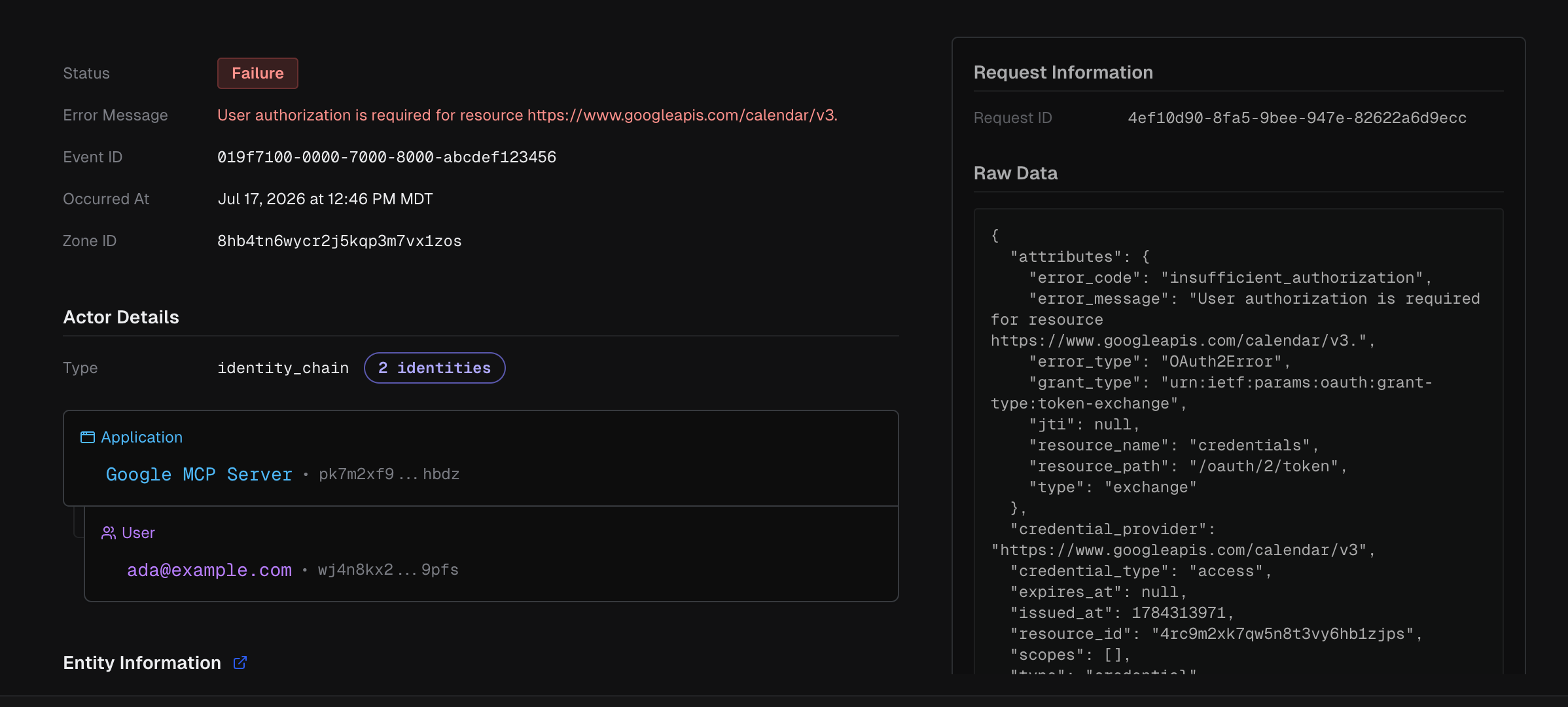
Check the Audit Log. From the grant’s actions menu, choose View in audit log to open the Audit Log filtered to that User, or open the Audit Log directly. After revocation, the Application’s next attempt shows as a Failure on the credential exchange (resource path
/oauth/2/token), with error codeinsufficient_authorizationand the message User authorization is required for resource<resource-url>. The event’s actor is the full identity chain — the Application and the User it acted for.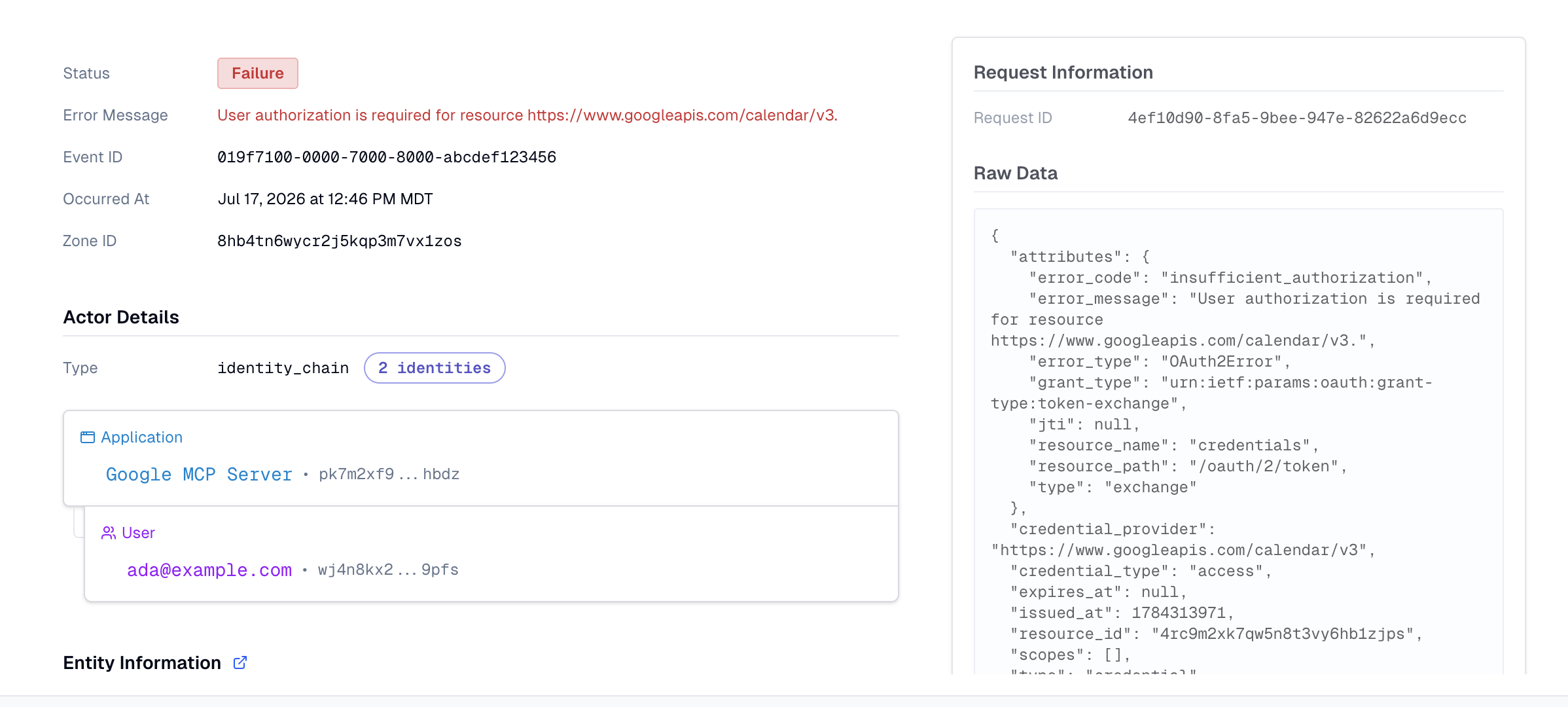
Re-grant access
Section titled “Re-grant access”A revoked grant stays revoked, but access can come back. To restore access, the User goes back through the authorization flow and approves the consent screen again. Keycard records a new grant and credential issuance resumes.
In Claude Code, run /mcp, select your server and choose Re-authenticate. It still shows the server as authenticated, because the agent’s token for your server is valid; only the GitHub grant is gone, so calling the tool again won’t bring the consent screen back. GitHub may not ask again if your OAuth App is still authorized there.
For an Application configured with implicit consent, there’s no screen to approve — the grant is re-created automatically the next time the User runs the flow.
Related
Section titled “Related”- Access Policies — the standing rules that decide who’s allowed access in the first place
- Credential Issuance — how Keycard issues, refreshes, and brokers the credentials a grant unlocks
- Applications — the consent model and how grants are created
- Providers — the external providers behind brokered grants
- Audit Log & Sessions — confirm the refusal that follows a revocation (
insufficient_authorizationon the next credential request) - Read an Activity Feed — the revocation itself,
delegated-grants:revoke, on the Resource’s Activity feed - Revoke once, access stops — what revocation reaches and what it does not, written for a reviewer
- Audit Log Export — stream credential and access events to your SIEM
- Roles & Permissions — who can perform management operations