
Configuration
Access policies decide which Users and Applications can access which Resources in Keycard.
Access is governed by the active Policy Set. Out of the box that is default-zone-policies, which contains three managed Policies: every authenticated User may reach every Resource, any Application may act on behalf of a User, and any Application acting on its own may reach the Resources it declares as dependencies.
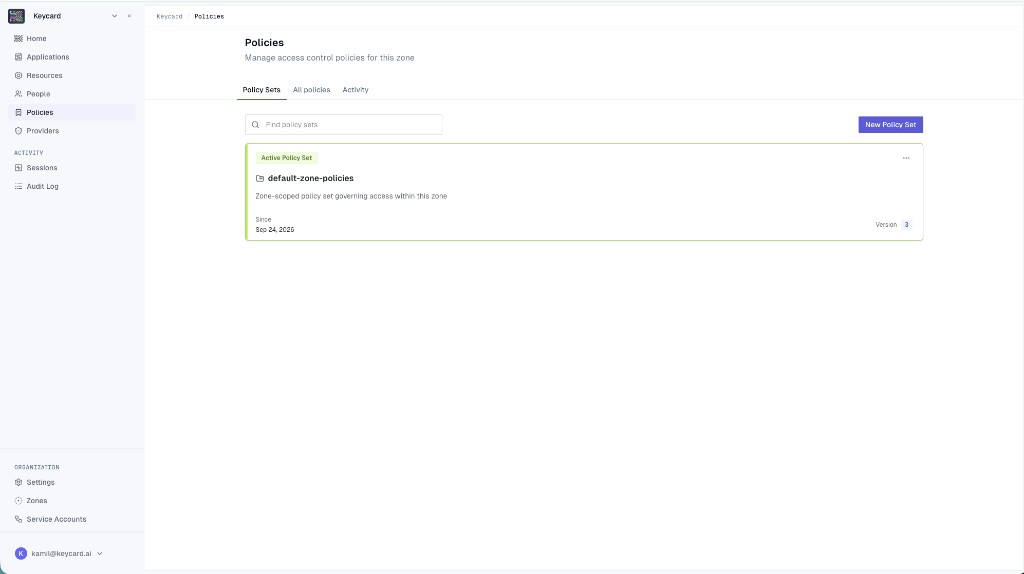
These defaults are useful while you are building out Applications and Resources, but should be restricted in a production setup. This page walks through replacing them with a Policy Set of your own in the Console, then collects the rule patterns you will reach for as that set grows.
Policy types
Section titled “Policy types”Every Policy has an owner, and the owner determines who can change it. There are two types:
| Type | Who writes it | Who can change it |
|---|---|---|
| Managed | Keycard | Keycard only. You can include it in a set but not edit or delete it. |
| Customer | You | You, through the Console or the API. |
A Policy Set can mix both types.
Managed Policies
Section titled “Managed Policies”Keycard creates and maintains the three Policies in default-zone-policies. You can’t edit or delete them, but you can add them to your own set.
default-user-grants : Permits all authenticated Users access to all Resources
@id("default-user-grants")permit ( principal is Keycard::User, action, resource);default-app-delegation : Permits Applications to act on behalf of Users
This is the permit behind OAuth delegation flows (context.on_behalf == true).
@id("default-app-delegation")permit ( principal is Keycard::Application, action, resource) when { context.on_behalf == true};default-app-direct-access : Permits Applications to access their dependencies directly
An Application acting as a consumer may reach a Resource on its own, without a User, if that Resource is in its dependencies set. The permit applies only to direct access: it does not cover delegation or impersonation, which need their own permit.
@id("default-app-direct-access")permit ( principal is Keycard::Application, action, resource) when { principal.dependencies.contains(resource) && context.on_behalf == false && context.impersonate == false};Customer Policies
Section titled “Customer Policies”Customer Policies are the rules you write. You assemble them into a Policy Set, and when you activate that set it replaces default-zone-policies as the active set for the Zone.
The rest of this page is about Customer Policies: how to write one, test it, and activate it.
Prerequisites
Section titled “Prerequisites”- The Admin organization Role, or the Manager Role on the Zone (see Roles & Permissions)
- The Keycard CLI installed. This guide uses it as the Application, and uses the two platform Resources it requests at sign-in: OpenID Connect UserInfo and Events API
Build a custom Policy Set
Section titled “Build a custom Policy Set”The goal is a Policy that lets the Keycard CLI, acting for a signed-in User, call the OpenID Connect UserInfo endpoint. Everything else stays denied.
-
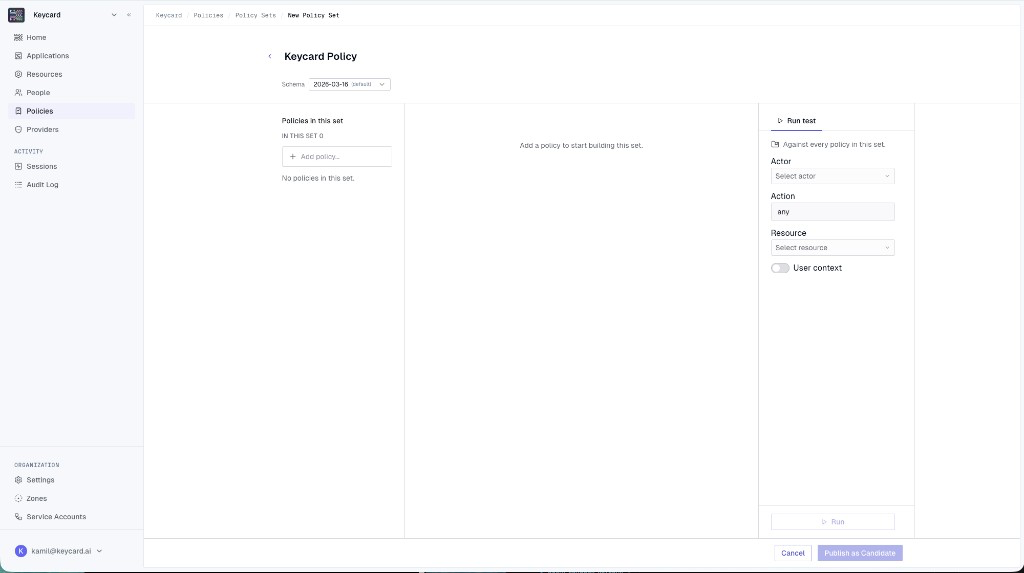
Create a Policy Set
In Keycard Console, open Policies, select the Policy Sets tab, and click New Policy Set. Give the set a name and leave the schema on its default version.
-
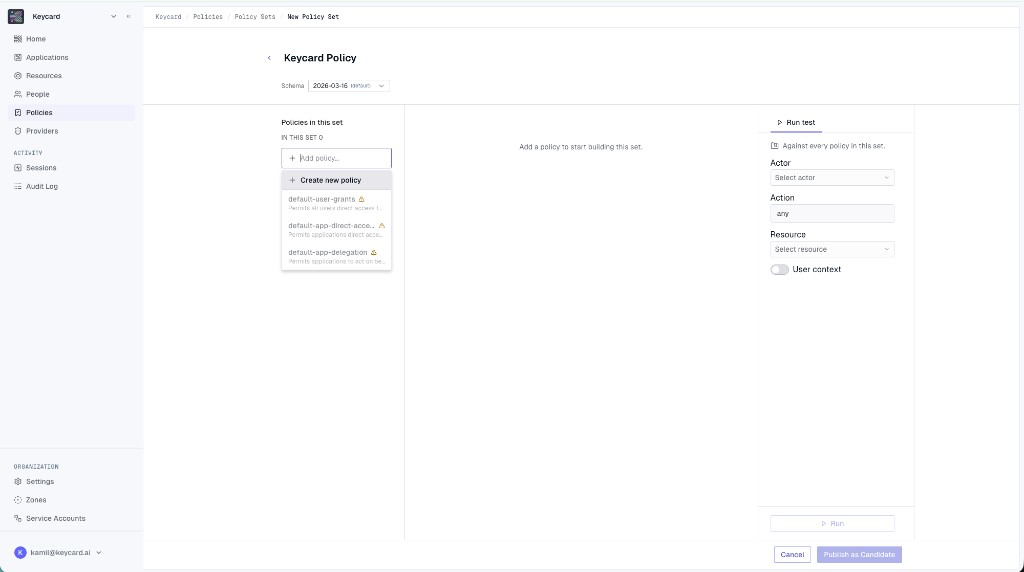
Add a Policy
Click Add policy…, then Create new policy.
Enter a name, such as
allow-cli-access, and an optional description. Click Add to set.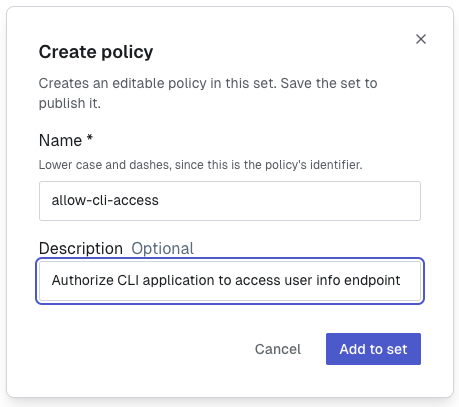
-
Write the first rule: permit the User
The new Policy opens with one empty rule. You can build rules in Visual mode or switch to Cedar and write the source directly.
In Visual mode, set the rule up as follows:
Field Value Rule effect Permit principal type is → User action any resource is → Resource → the OpenID Connect UserInfo Resource 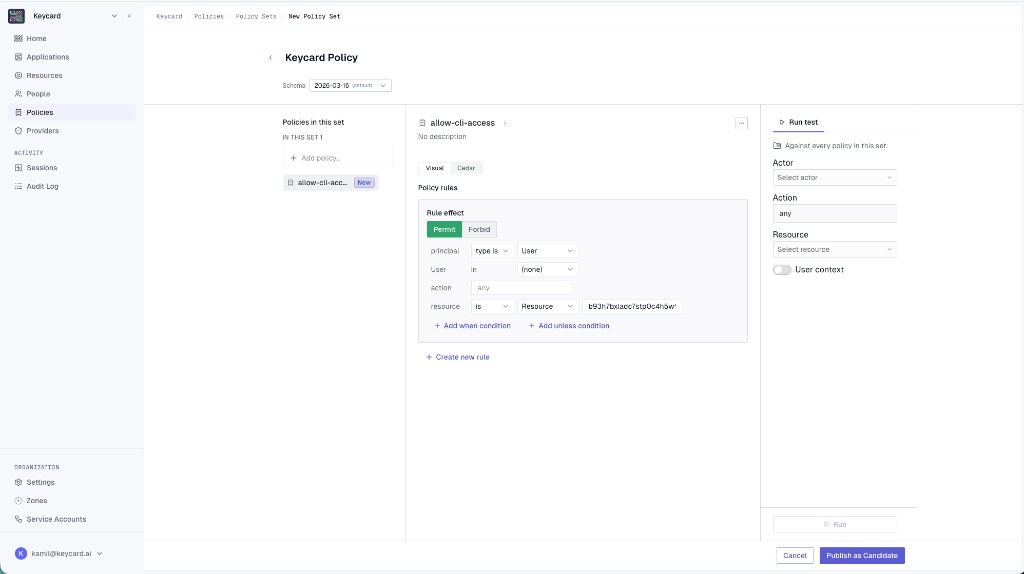
This permits the User. Keycard also needs a permit for the Application acting on their behalf.
-
Add a second rule: permit the Application
Click Create new rule at the bottom of the editor and configure it:
Field Value Rule effect Permit principal is → Application → Keycard CLI action any resource is → Resource → the OpenID Connect UserInfo Resource when context.on_behalfequalstrueThe
on_behalfcondition restricts the CLI to acting for a signed-in User.Switch to the Cedar tab to see the same two rules as source:
permit (principal is Keycard::User,action,resource == Keycard::Resource::"<userinfo-resource-id>");permit (principal == Keycard::Application::"<cli-application-id>",action,resource == Keycard::Resource::"<userinfo-resource-id>") when {context.on_behalf == true}; -
Test before you publish
Use the Run test panel to evaluate a request against every Policy in the set. Test both halves of the decision.
First, the User. Set Actor to your own account, Action to
any, and Resource to OpenID Connect UserInfo. Leave User context off. Click Run.Then, the Application. Set Actor to Keycard CLI, keep the same Resource, and turn User context on. Set Subject to your account. Click Run.
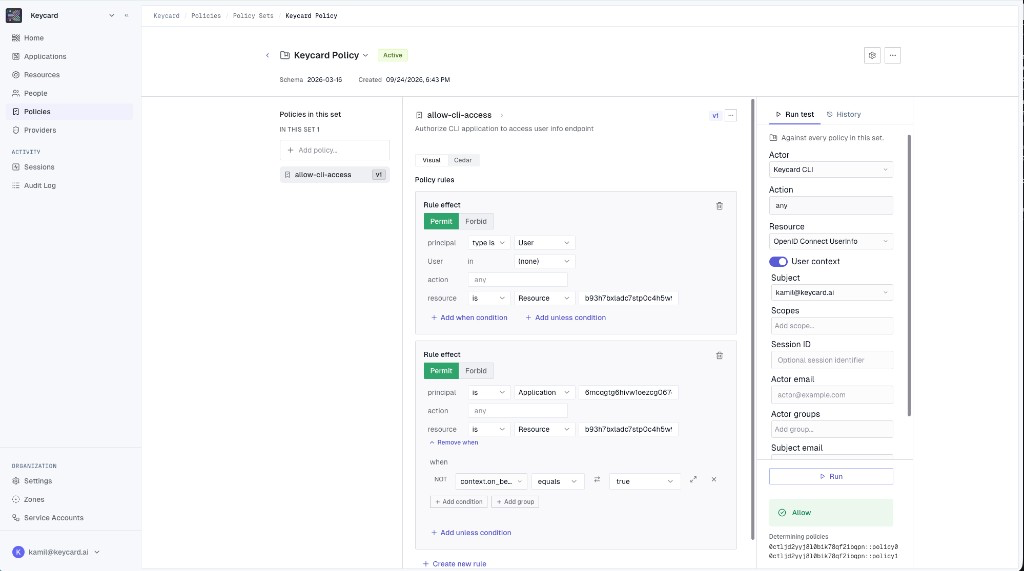
Both runs should return Allow. The Determining policies list under the result names the rules that produced the decision. Testing walks through both runs in detail, the denials you should expect, and the request context fields.
-
Publish and activate
Click Publish as Candidate. Keycard saves a version of the set, but the Zone keeps running on default-zone-policies.
When you are ready, click Activate in the set’s header. The candidate replaces default-zone-policies as the Zone’s active set.
Verify with the CLI
Section titled “Verify with the CLI”-
Sign in with the CLI
Sign out first so the CLI goes through the full browser flow, then sign in against the Zone:
Terminal window keycard auth signout --zone <zone-id>keycard auth signin --zone <zone-id> -
Read the denial
The browser shows an Access denied page rather than the consent screen.
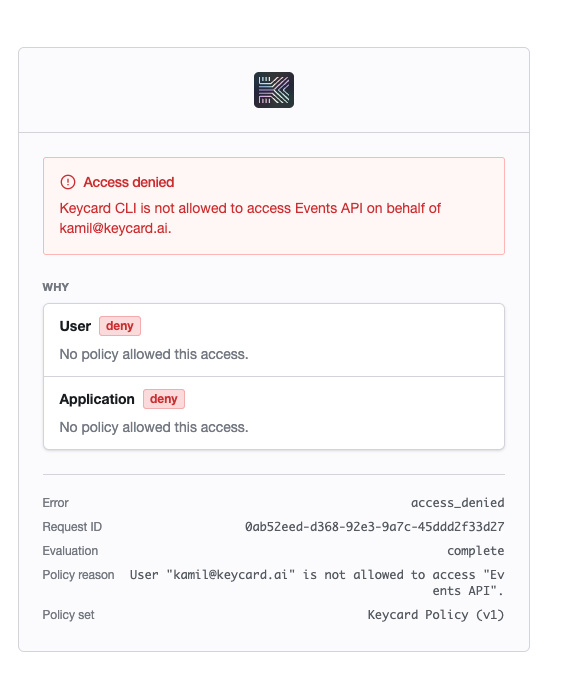
The CLI requests Events API at sign-in as well as UserInfo, and the Policy only covers UserInfo. The Why panel shows neither the User nor the Application has a permit for it. The same decision is recorded under Policies → Activity; Troubleshooting covers how to read it.
-
Add the missing Resource
Open the Policy Set, select
allow-cli-access, and add two more rules for Events API, mirroring the two you wrote for UserInfo: one permitting the User, one permitting Keycard CLI whencontext.on_behalfistrue.Because the set is active, saving deploys the new version immediately, so the Console asks you to confirm.
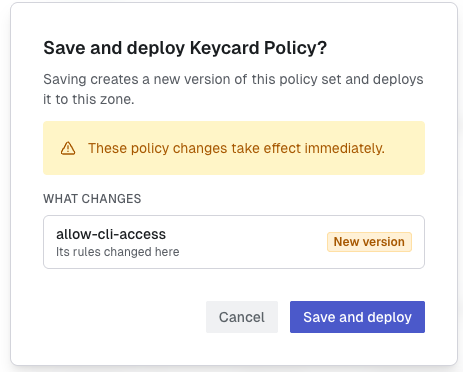
Click Save and deploy.
-
Sign in again
Run
keycard auth signin --zone <zone-id>once more. This time the browser shows the consent screen listing both Resources. Click Allow access, and the CLI completes sign-in.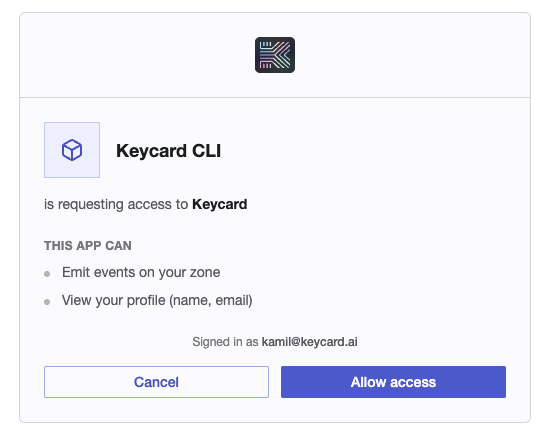
Rule patterns
Section titled “Rule patterns”The walkthrough named one Application and one Resource. The patterns below cover what most real Policy Sets need next: granting by membership rather than by name, and conditioning on how an Application authenticates. For every entity and context attribute a rule can read, see the Policy Schema reference.
Keycard uses Cedar as its policy language. A rule either permits or forbids, a forbid always wins over a permit, and when/unless clauses add conditions.
Roles and Groups let a rule match a set of principals; membership is resolved when the request is evaluated. Both use Cedar’s in operator against a membership target.
Role-based Policies
Section titled “Role-based Policies”Membership comes from Role assignments.
The platform-owned Roles are the administrative ones from Roles & Permissions: admin and viewer. The Console shows a Zone-scoped admin assignment as the Manager Zone Role, so a rule on Keycard::Role::"admin" matches your Zone Managers as well as organization Admins.
Grant by Role
Section titled “Grant by Role”@id("permit-platform-admin-role")permit ( principal in Keycard::Role::"admin", action, resource);Combine Roles with delegation
Section titled “Combine Roles with delegation”Roles resolve for both the actor and the subject in a delegated request. This rule permits members of the viewer Role only when acting on behalf of a User:
@id("permit-viewer-on-behalf")permit ( principal in Keycard::Role::"viewer", action, resource) when { context.on_behalf == true};Restrict a Resource to a Role
Section titled “Restrict a Resource to a Role”in matches exact entity IDs; there are no Role wildcards or negation. To exclude non-members, write a forbid rule or rely on default deny:
@id("restrict-resource-to-admins")forbid ( principal, action, resource == Keycard::Resource::"<resource-identifier>") unless { principal in Keycard::Role::"admin"};How Role membership is resolved
Section titled “How Role membership is resolved”- Role assignments are the source of truth, read at evaluation time. Changing an assignment changes decisions without a policy update.
- Zone-scoped assignments apply only within their Zone. Unscoped assignments apply in every Zone.
Group-based Policies
Section titled “Group-based Policies”Use a Group when the rule is about who someone is on your team (the data analysts, the on-call rotation). Use a Role when the rule is about what someone may administer.
Grant by Group
Section titled “Grant by Group”The entity ID is the Group’s identifier:
@id("permit-data-analysts")permit ( principal in Keycard::Group::"data-analysts", action, resource);Restrict a Resource to a Group
Section titled “Restrict a Resource to a Group”This rule permits the data analysts to reach a Snowflake Resource, and only with a read-write session role:
@id("permit-data-analysts-snowflake")permit ( principal in Keycard::Group::"data-analysts", action, resource)when{ resource.identifier == "<resource-identifier>" && context has scopes && context.scopes.containsAny(["session:role:READWRITE_ROLE"])};Combine Groups with delegation
Section titled “Combine Groups with delegation”In a delegated request, Group membership belongs to the subject (the User being acted for), not to the calling Application. This rule permits any Application acting on behalf of an on-call engineer:
@id("permit-on-call-on-behalf")permit ( principal, action, resource) when { context.on_behalf == true && context has subject && context.subject in Keycard::Group::"on-call"};Groups versus the IdP groups claim
Section titled “Groups versus the IdP groups claim”There are two ways to match on group membership:
principal in Keycard::Group::"<identifier>"reads Keycard Group membership at evaluation time.context.subject_claims.groups.contains("<name>")reads thegroupsclaim the identity provider put on the token at sign-in.
The groups claim is a legacy mechanism and will be deprecated. Use Keycard Groups instead: membership is evaluated on every request rather than frozen into the token at sign-in, and it does not depend on the provider being configured to send the claim.
If you have existing rules that match on the claim, they look like this. Plan to migrate them to Keycard::Group:
@id("permit-idp-engineering-group")permit ( principal is Keycard::User, action, resource) when { context has subject_claims && context.subject_claims has groups && context.subject_claims.groups.contains("Engineering")};How Group membership is resolved
Section titled “How Group membership is resolved”- Membership is read at evaluation time. Adding or removing a member changes access without a policy update and without the User signing in again.
- Groups are Zone-scoped. A Group identifier only matches within the Zone that owns it.
- Groups do not nest.
inmatches direct membership only.
Condition on Application attributes
Section titled “Condition on Application attributes”Rules can also test how an Application was registered and how it authenticates. This forbid rule blocks any Application that does not authenticate with short-lived tokens, so a service holding a static secret cannot get upstream access through Keycard:
@id("require-workload-identity")forbid ( principal is Keycard::Application, action, resource) unless { principal has credential_type && principal.credential_type == Keycard::CredentialType::"token"};Applications configured with workload identity federation have a credential_type of "token". The attribute can be absent, which is why the rule checks principal has credential_type first. The other values, along with registration_method, traits, and dependencies, are listed under Keycard::Application in the Policy Schema.
Troubleshooting
Section titled “Troubleshooting”- Run test returns Deny but the rules look right. Check which half failed. The User test needs a rule whose principal matches a User; the Application test needs a rule whose principal matches the Application, and
on_behalfconditions only hold when User context is on. See Testing. - The CLI still lands on Access denied after Save and deploy. Open the Activity event and check that the denied Resource is the one your rule names. Reproduce it in Run test with the same Actor, Subject, and Resource.
- Activate is greyed out. You are viewing a set version that is already active, or you have unsaved changes. Publish first, then activate.