
Testing
Evaluate a Policy against real Users, Applications, and Resources before it goes live, and read the denial when a live request fails
The Run test panel evaluates one request against the Policies you are editing, using the real Users, Applications, and Resources in the Zone. Nothing is deployed, no token is issued, and no Activity event is recorded. Keycard evaluates a delegated request as two checks, the User’s own access and the Application’s right to act for them, so a Policy that covers a delegated flow has to pass both.
This page tests the allow-cli-access Policy from Configuration: the User half, the Application half, and the denial you expect. It then covers the request context fields. For reading the denial a live request produces, see Troubleshooting.
Prerequisites
Section titled “Prerequisites”- The Admin organization Role, or the Manager Role on the Zone (see Roles & Permissions)
- A Policy Set with at least one Policy. The steps use the set built in Configuration, where
allow-cli-accesspermits any User on OpenID Connect UserInfo and permits Keycard CLI on the same Resource when acting for a User. Substitute your own Application and Resource if you built something else.
What Run test evaluates
Section titled “What Run test evaluates”The panel evaluates whatever you have open. The caption above the fields tells you which.
| Where you open it | What is evaluated |
|---|---|
| A Policy Set, viewing a published version | Every Policy in that version. Pick a different version in History to test it instead. |
| A Policy Set with unsaved changes | The unsaved draft, marked Draft |
| A new Policy Set | The Policies added so far, before the set is saved |
| A Policy, viewing a published version | That Policy alone |
| A Policy with unsaved rules | The rules as currently written, marked Draft |
A Policy tested on its own can return Allow while the set returns Deny: a forbid in another Policy wins over a permit in this one. Test the set before you activate it.
Test the Policy Set
Section titled “Test the Policy Set”-
Open the set and the Run test tab
In Keycard Console, open Policies, select the Policy Sets tab, and click your set. The right-hand panel opens on Run test with the caption Against every policy in this set.
-
Test the User
Field Value Actor Your own account, from the Users section of the picker Action anyResource OpenID Connect UserInfo User context Off Click Run.
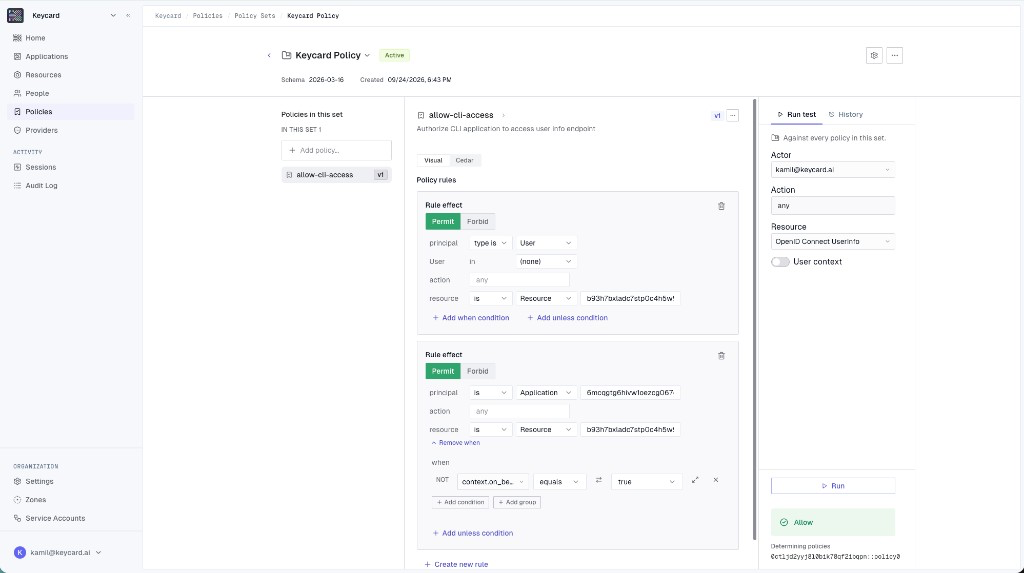
The result is Allow with one entry under Determining policies. With User context off this is a single check:
context.on_behalfandcontext.impersonateare bothfalseand there is nocontext.subject. It mirrors the Subject check in a delegated request, so if it fails here, no Application will get access for that User either. -
Test the Application
Field Value Actor Keycard CLI, from the Applications section of the picker Action anyResource OpenID Connect UserInfo User context On Subject Your own account Click Run.
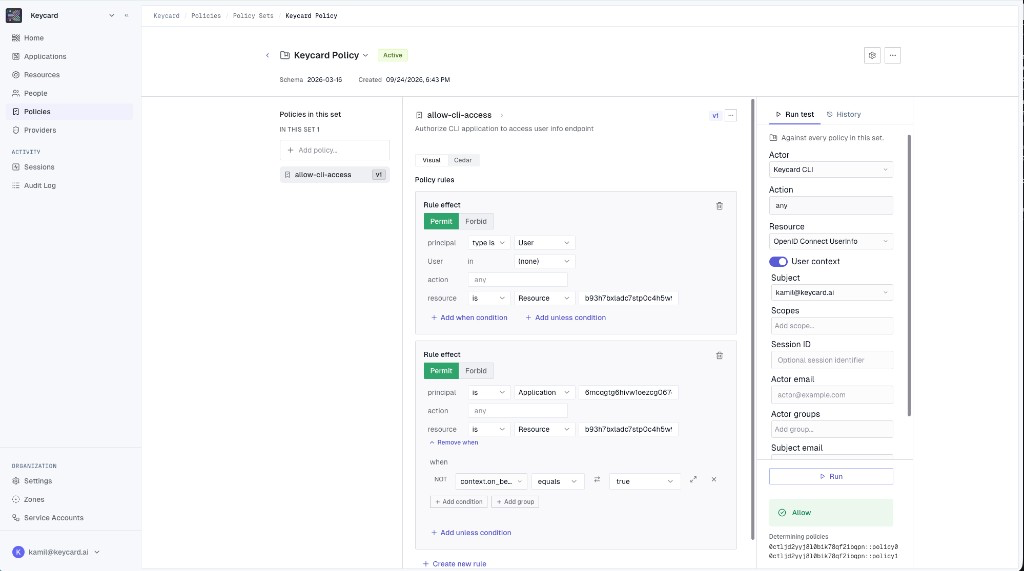
The result is Allow with two determining policies. Setting a Subject turns the run into a delegated request, which Keycard evaluates as two checks: the Subject’s own access (
on_behalf == false) and the Actor’s right to act for them (on_behalf == true). Both have to permit, and Determining policies lists the rule that satisfied each. -
Test what should be denied
Change Resource to Events API and click Run.
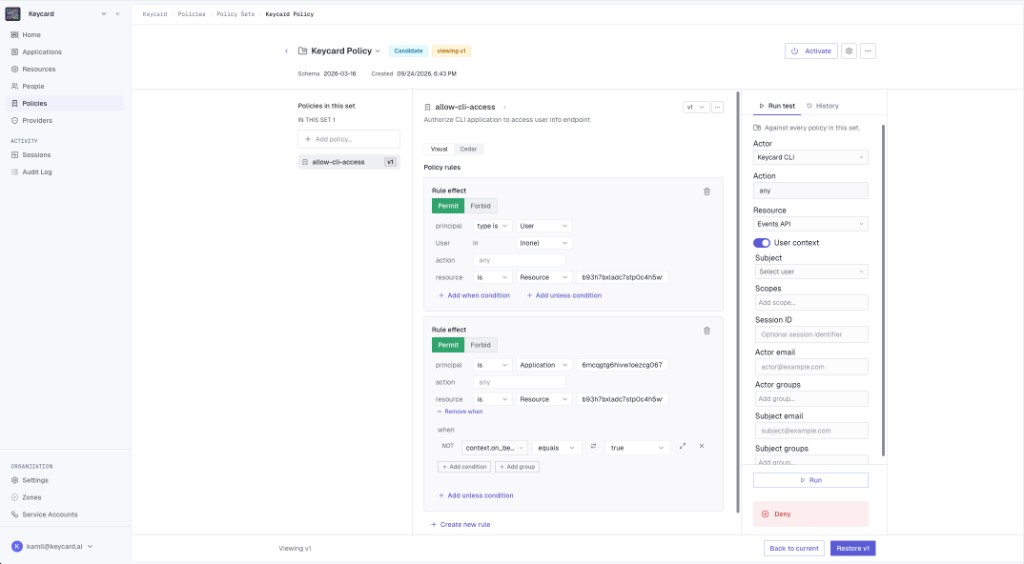
The result is Deny with nothing under Determining policies: no rule in the set mentions this Resource, so the request falls through to the default deny. This is the denial the CLI hits at sign-in in Verify with the CLI.
Switch Resource back to OpenID Connect UserInfo, keep Keycard CLI as the Actor, and turn User context off. The result is Deny again. Without a Subject the CLI is evaluated as acting on its own, so a rule that requires
context.on_behalf == truedoes not match.When a
forbidrule causes a denial, it appears under Determining policies. An empty list on Deny always means nopermitmatched. -
Read the determining policies
Each entry has the form
<policy-version-id>::<rule-id>. Rules built in Visual mode are numberedpolicy0,policy1, and so on in the order they appear. A rule written in the Cedar tab with an@id("...")annotation shows that name instead, which makes the list easier to read once a set has more than a handful of rules. -
Test an earlier version
Open the History tab and click a version. The editor switches to read-only and the Run test tab now evaluates that version; the badge beside the set name shows which. Run the same requests to see how the decision differed. Testing a version does not activate it; see Versions and Rollback for that.
Simulate request context
Section titled “Simulate request context”Turning User context on reveals the request context, which lets you test richer authorization checks than actor, action, and Resource alone. Each field maps to one attribute in the Cedar context record described in the Policy Schema.
| Field | Cedar attribute | What it stands in for |
|---|---|---|
| Subject | context.subject; sets context.on_behalf to true on the Actor’s check | The User the Application acts for. The Subject’s Role and Group membership is read from the Zone. |
| Scopes | context.scopes | The OAuth scopes in the request |
| Session ID | None | Recorded with the request for correlation. No schema version exposes it to rules, so it does not change the decision. |
| Actor email | context.actor_claims.email | The email claim on the Actor’s token |
| Actor groups | context.actor_claims.groups | The groups claim on the Actor’s token |
| Subject email | context.subject_claims.email | The email claim on the Subject’s token |
| Subject groups | context.subject_claims.groups | The groups claim the identity provider put on the Subject’s token at sign-in |
An empty field leaves its attribute out of the context entirely, which is why rules guard with context has scopes && before reading it. The fields are available without a Subject, so you can test a User actor with scopes by turning User context on and leaving Subject empty.
Test a scope condition
Section titled “Test a scope condition”The rule below, from Restrict a Resource to a Group, only permits a read-write session role:
@id("permit-data-analysts-snowflake")permit ( principal in Keycard::Group::"data-analysts", action, resource)when{ resource.identifier == "<resource-identifier>" && context has scopes && context.scopes.containsAny(["session:role:READWRITE_ROLE"])};Set Actor to the Application, Resource to the Snowflake Resource, turn User context on, set Subject to a member of data-analysts, and add session:role:READWRITE_ROLE under Scopes. Run once for Allow, remove the scope, and run again for Deny.
Test a Group or Role rule
Section titled “Test a Group or Role rule”Membership is read from Zone data when the request is evaluated, so there is nothing to type. Pick a Subject who belongs to the Group for Allow, then a User who does not for Deny. For a rule written as context.subject in Keycard::Group::"on-call", the membership that matters is the Subject’s, not the Actor’s. Adding or removing a member changes the result on the next run without editing the Policy.
Test an identity provider groups claim
Section titled “Test an identity provider groups claim”Rules that read context.subject_claims.groups match the groups claim from the identity provider, not Keycard Group membership. To test permit-idp-engineering-group, add Engineering under Subject groups. Actor groups does the same for the Actor’s own token.