
Manage service accounts
Give automation such as Terraform or a deployment pipeline its own credentials for the Keycard management API, and replace or retire them without interrupting it
Create a service account for software that administers Keycard: Terraform, a CI/CD pipeline, or a script that manages Applications, Resources, and Policies through the management API.
A service account is not the runtime identity of your agent, MCP server, or API. For code that needs access to tools and services, see Give an agent its own access and the Application identity guides.
Prerequisites
Section titled “Prerequisites”- The organization Admin Role. Viewers can see service accounts but cannot create or change them. See Roles & Permissions.
- Service accounts belong to the organization, so the Service Accounts page is hidden while you are working inside a custom Zone. Switch back to the organization first.
Create a service account
Section titled “Create a service account”-
Open the Service Accounts page
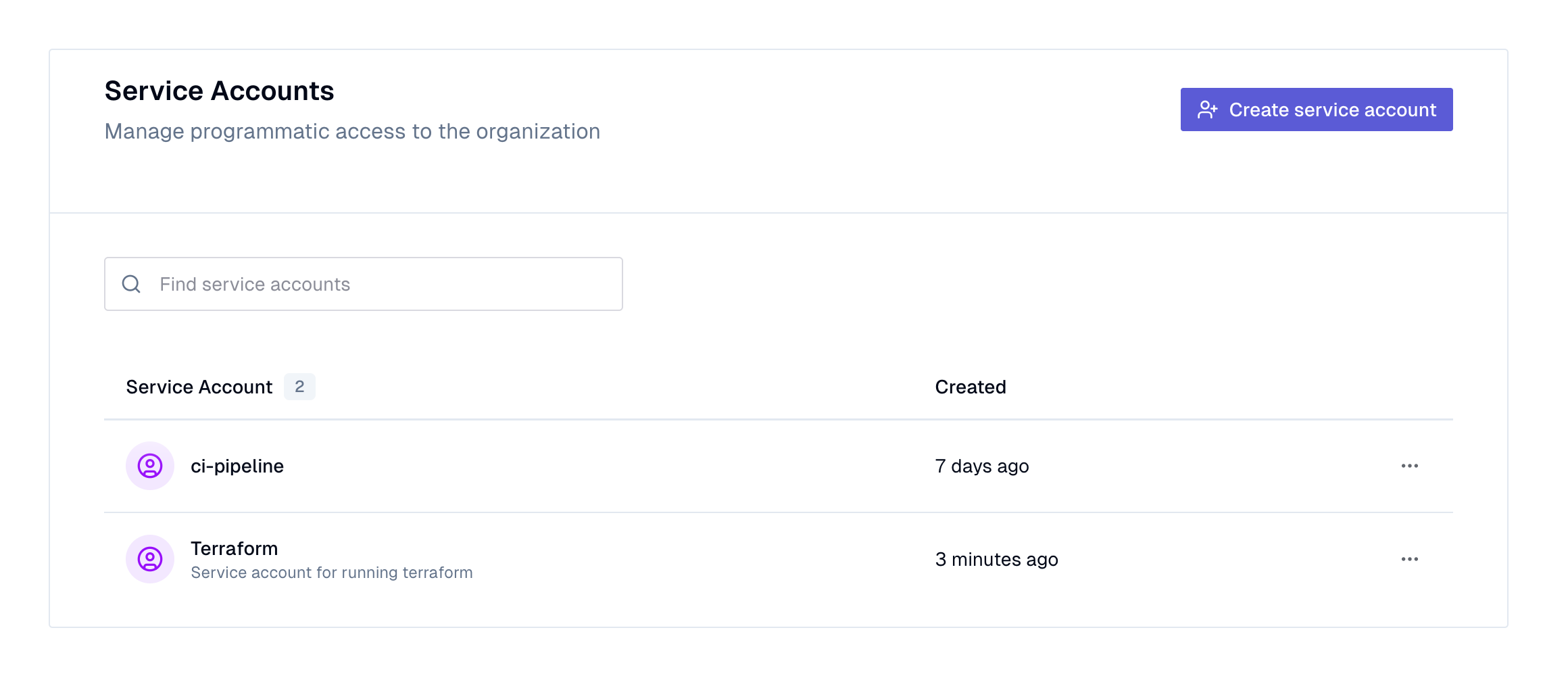
In Keycard Console, click Service Accounts in the sidebar, under Organization.
-
Create the account
Click Create service account. Enter a Name that says what the automation is (
Terraform,CI/CD Pipeline) and an optional Description, then click Create. Console opens the account’s page.
Add a credential
Section titled “Add a credential”A service account authenticates with a client ID and client secret. An account can hold several credentials, so you can rotate one without touching the others.
-
Add the credential
On the account’s page, under Credentials, click Add credential. Enter a Name and an optional Description, then click Create Credential.
-
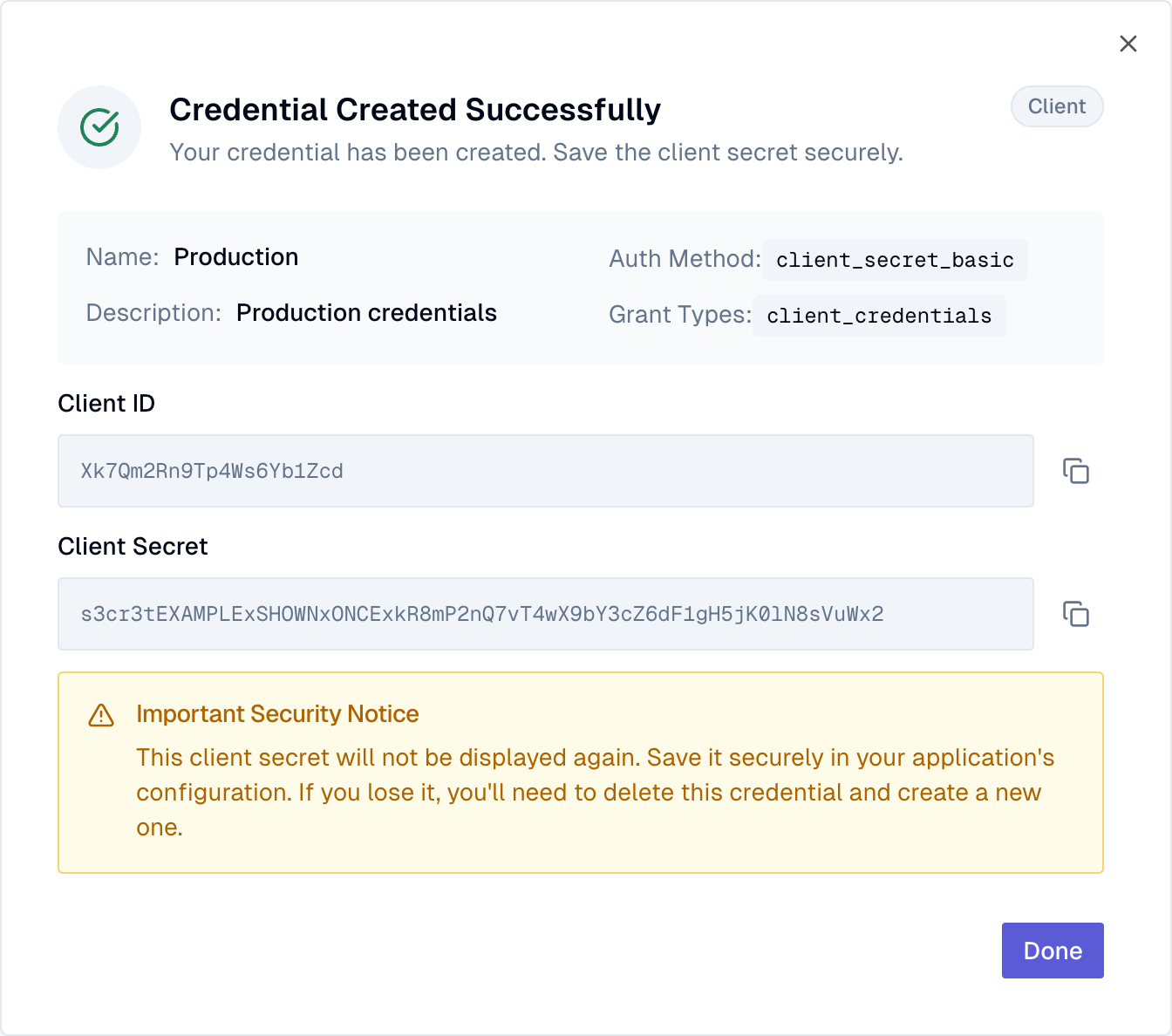
Save the client ID and client secret
Console shows the Client ID and Client Secret once. Copy both into your automation’s secret store now. The secret cannot be retrieved later; if you lose it, delete the credential and create a new one.
The credentials table shows each credential’s Client ID, when it was Created, and Last Active At: the last time the credential authenticated at the token endpoint. It is not the last time a token issued to it called the API.
Use the credential
Section titled “Use the credential”Terraform. Give the Terraform provider
the pair as client_id and client_secret, or as the KEYCARD_CLIENT_ID and
KEYCARD_CLIENT_SECRET environment variables.
Management API. Exchange the pair for a short-lived Bearer token with the
OAuth 2.0 client credentials grant. Send the credentials as HTTP Basic
authentication or as client_id and client_secret form fields, but not both;
the endpoint rejects a request that does both.
curl -s -X POST https://api.keycard.ai/service-account-token \ --user "$KEYCARD_CLIENT_ID:$KEYCARD_CLIENT_SECRET" \ -d "grant_type=client_credentials"The response carries access_token, token_type, and expires_in. Request a
new token when expires_in runs out rather than assuming a fixed lifetime, and
keep the token out of logs. To confirm the credential works without changing
anything, read your organization; the Organization ID is under Settings →
Connection:
curl -s https://api.keycard.ai/organizations/<organization-id> \ -H "Authorization: Bearer $ACCESS_TOKEN"Rotate a credential
Section titled “Rotate a credential”Add the replacement before you delete the credential your automation uses.
- Add a new credential and save its client ID and secret.
- Update the automation’s configuration with both values. Each credential has its own client ID, so changing only the secret does not work.
- Request a fresh token with the new pair and make a read-only call. A call that reuses a cached token does not prove the new credential works.
- Once every running instance has picked up the new pair, open the old credential’s ⋯ menu, click Delete, and confirm.
A token request with the deleted credential now fails with 401.
Delete a service account
Section titled “Delete a service account”Stop the automation first. Then open the account’s ⋯ menu, click Delete Service Account, and confirm. Deleting the account revokes all of its credentials, so no new tokens can be requested with any of them. To replace a single credential, delete the credential instead.
Manage service accounts through the API
Section titled “Manage service accounts through the API”With an Admin token you can automate the steps above. Accounts live under
/organizations/<organization-id>/service-accounts, and each account’s
credentials under /organizations/<organization-id>/service-accounts/<service-account-id>/credentials.
Create with POST (a JSON name and optional description), and delete with
DELETE on the account or credential path. The client_secret is returned only
by the POST that creates the credential; later reads return metadata only.