
Create an OIDC app integration in Okta and link it to your Keycard organization. For what SSO does after setup, see Single Sign-On.
Prerequisites
Section titled “Prerequisites”- The Admin organization Role in Keycard.
- An Okta account with the Application Administrator role or higher.
Configure SSO
Section titled “Configure SSO”-
Copy the Redirect URL
In Keycard Console, open Settings → Connection and copy the Redirect URL.
-
Create the app integration
- In Okta Admin Console, go to Applications → Create App Integration.
- Select OIDC - OpenID Connect and Web Application.
- Set Sign-in redirect URIs to the Redirect URL from step 1.
- Select Use Okta-generated client ID.
- Under Assignments, select Limit access to selected groups and add the groups whose users sign in to Keycard. Allow everyone in your organization to access with Enable immediate access turns on Okta Federation Broker Mode, which hides the tile and blocks assignment.
- Save the app.
-
Copy the credentials
From the app’s General tab, copy the Client ID and Client Secret. The issuer is your Okta domain,
https://<okta-domain>. -
Link Okta to Keycard
In Keycard Console, open Settings → SSO, or use the Keycard Terraform provider. Turn on Enable SSO and fill in:
Field Value Identifier https://<okta-domain>Client ID The Client ID from step 3 Client Secret The Client Secret from step 3 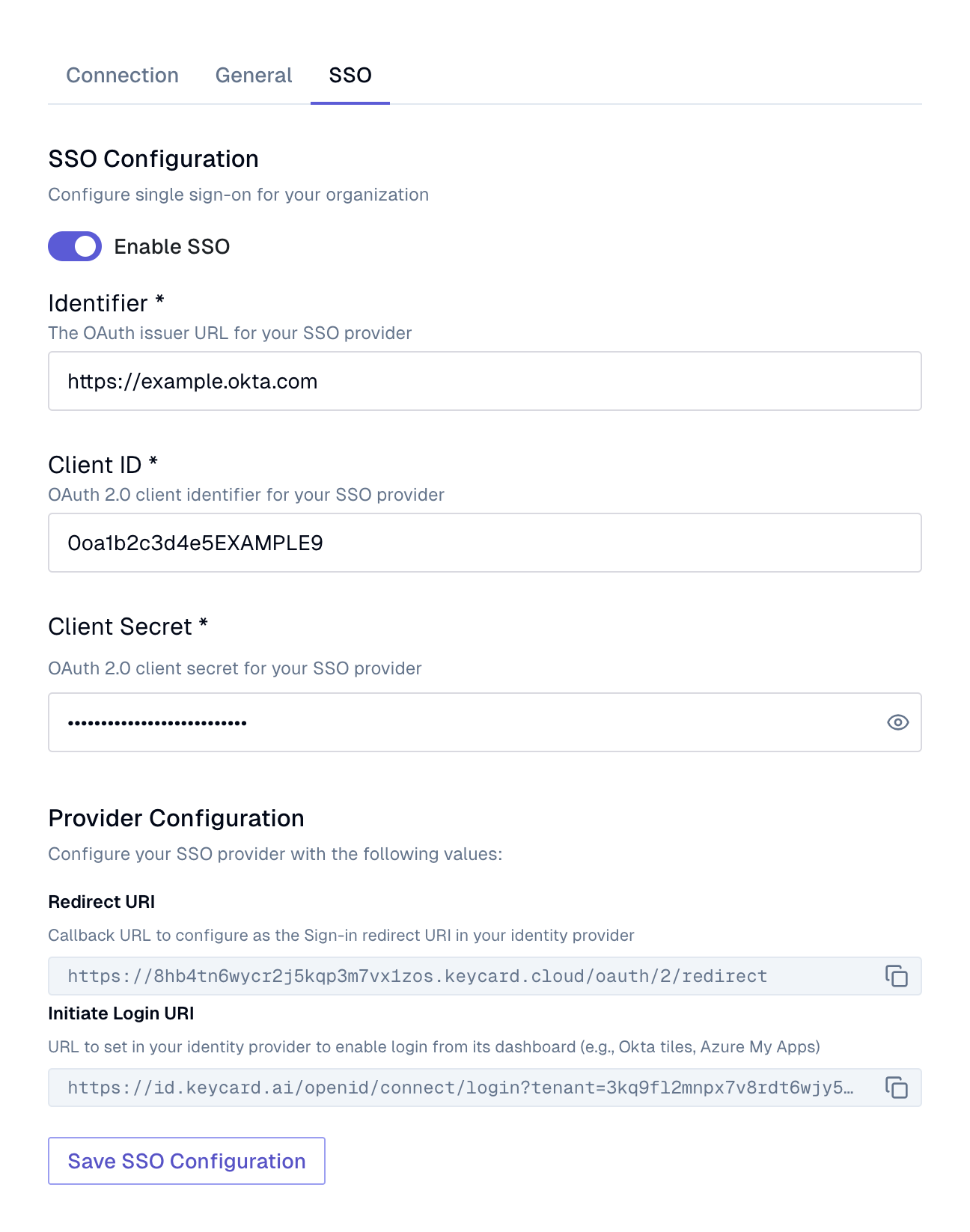
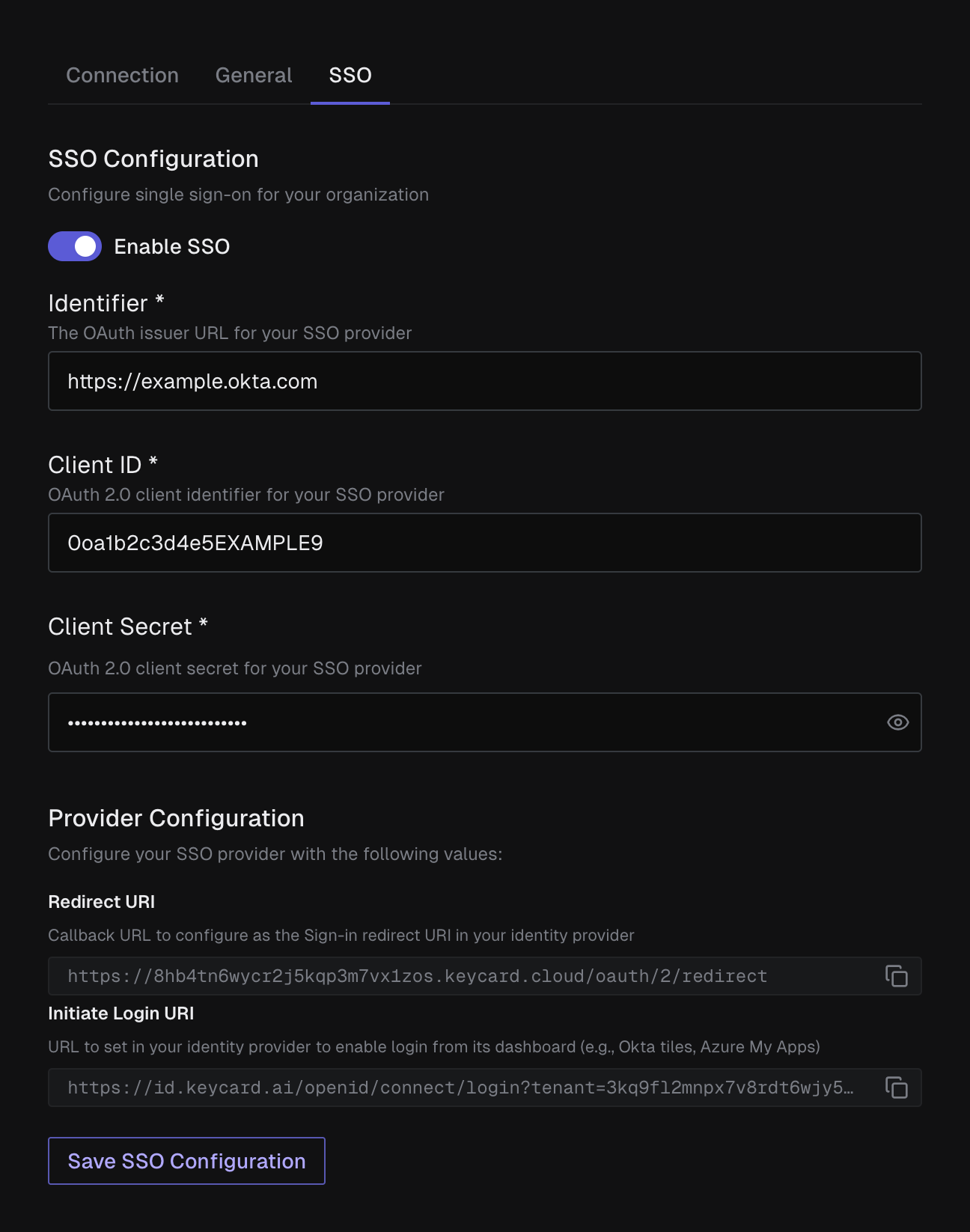
Click Save SSO Configuration.
-
Add the Okta tile
In Keycard Console, copy the Initiate Login URI from Settings → SSO under Provider Configuration. In the Okta app’s General tab, under Login:
- Set Login initiated by to Either Okta or App. Okta shows the tile on users’ dashboards only with this setting.
- Paste the URI into Initiate login URI.
- Save.
-
Assign people
Open the Assignments tab and click Assign → Assign to People or Assign to Groups. Only assigned users can sign in.
Verify
Section titled “Verify”Sign in from the Keycard tile on your Okta dashboard. In Keycard Console, open People and confirm the User appears. New Users join as Viewer; see User Roles and Access.
To provision Users and Groups before they sign in, see Provision from Okta.
Troubleshooting
Section titled “Troubleshooting”Okta shows a redirect URI error
Section titled “Okta shows a redirect URI error”The Sign-in redirect URIs value does not match the Keycard Redirect URL. Copy it again from Settings → Connection.
The tile opens an error page
Section titled “The tile opens an error page”The SSO configuration wasn’t saved, or the Initiate login URI was edited or copied incompletely. Save it in Settings → SSO and copy the URI again.
The tile does not appear on the Okta dashboard
Section titled “The tile does not appear on the Okta dashboard”Set Login initiated by to Either Okta or App, turn off Federation Broker Mode on the app’s General tab, and assign the user to the app.