
Run Claude Code with the Keycard CLI
Run Claude Code in an audited Keycard session in minutes
By the end of this guide, you’ll have:
- Claude Code running in a Keycard secure session, connected to an MCP server from the Catalog
- A session log of the tool calls your agent makes
You should be able to complete this guide in about 10 minutes.
-
Sign up for Keycard
Go to console.keycard.ai, create your account, and sign in.
-
Install the Keycard CLI
Install the Keycard CLI from your computer’s terminal:
Terminal window brew install keycardai/tap/keycard -
Install the Keycard Claude plugin
In the root of your project, run:
Terminal window keycard plugin install claudeClaude Code turns the plugin on for that directory only. The plugin adds a set of Skills Claude uses to manage your Keycard setup.
-
Install an MCP server from the catalog
The Keycard Catalog lets you install official MCP servers like Linear, Sentry, Notion, Jira, GitHub, and more. Pick one to install:
-
Open Console → Resources → Add Resource → Explore Resources.
-
Pick a server (this guide uses Linear MCP as the running example) and click Continue with Linear MCP. Console opens the new Linear MCP Proxy Resource when it’s ready: a Keycard MCP endpoint that fronts Linear’s MCP server, so your agent never holds a Linear token.
-
On that Resource, click Add to Coding Agent → Claude Code, and copy the displayed
claude mcp addcommand into your terminal:Terminal window claude mcp add --transport http --scope user <server-name> <gateway-url>
-
-
Run your agent in a secure session
Find the CLI configuration snippet with your Organization ID and Zone ID in the Keycard Console:
-
Open Settings → Connection, then copy the CLI configuration code block.
-
In the root of your project, create a
keycard.tomland paste your CLI configuration into the file:[org]id = "<org-id>"[zone]id = "<zone-id>"
Then start a Keycard-protected Claude Code session:
Terminal window keycard run claude -
-
Use the MCP server
Ask Claude to do something that calls the MCP server you installed. For example, if you’re using Linear:
List my open Linear issues.
On the first call, Keycard prompts you to authorize access between Keycard and Linear:
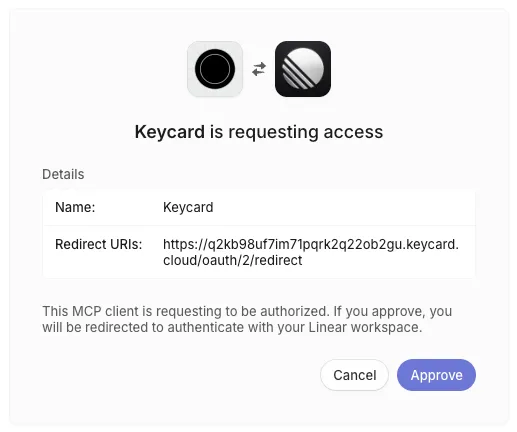
Claude Code reports that Linear-MCP-Proxy needs authentication. Run
/mcp, select Linear-MCP-Proxy and choose Authenticate, then click Allow access in the browser. The first time you connect Linear, Linear also asks you to Approve Keycard and pick your workspace. Then ask again. -
Check the session log
In your Keycard Console, click Sessions to see the tool calls made during your session with Claude.
What’s Next
Section titled “What’s Next”Now that you have Claude Code running in a secure session with token exchange, here’s where to go next:
- Install more MCP and API servers for Sentry, Notion, Atlassian, Gmail, Slack, and more in the Catalog
- Access APIs on Behalf of Users so each agent call is scoped to the signed-in user’s identity, permissions, and audit attribution
- Run on Fly.io without secrets so workloads authorize every call with their own identity instead of long-lived API keys
- Grant an agent access to Snowflake so autonomous agents get their own scoped identity and audit trail, independent of any human
Troubleshooting
Section titled “Troubleshooting”keycard run fails to start
- Verify
keycard auth signinsucceeded by runningkeycard auth whoamiin the project directory - Check that
keycard.tomlexists in the project root and that its[org] idand[zone] idmatch the ones shown in Console under Settings → Connection
MCP server OAuth fails on first tool call
- Open the application in Console → Applications and re-run the OAuth flow from the install dropdown
- Confirm your
claude mcp addcommand used the correct Gateway URL